You just designed the perfect Instagram post. The colors are right, the text is sharp, the layout is clean. You hit publish. And then Instagram crops it. The bottom of your image gets sliced off. The text runs into the edges. Your carefully composed shot looks like it was put through a paper shredder. All because you used the wrong dimensions.
This happens constantly, and it is entirely preventable. Instagram supports over a dozen content formats in 2026 — feed posts, Stories, Reels, carousels, profile pictures, and more — and each one has its own ideal dimensions, aspect ratios, file size limits, and resolution requirements. Use the wrong specs and your content looks amateur, gets cropped awkwardly, or loses quality during compression.
This guide covers every single Instagram format with exact pixel dimensions, aspect ratios, file type requirements, and resolution best practices for 2026. Bookmark it, reference it every time you create content, and stop guessing.
Key Takeaways
- Instagram supports multiple aspect ratios for feed posts: square (1:1 at 1080x1080), portrait (4:5 at 1080x1350), and landscape (1.91:1 at 1080x566). Portrait performs best for engagement because it takes up the most screen real estate
- Stories and Reels both use 1080x1920 pixels (9:16 aspect ratio) — full-screen vertical. This is the most important dimension to memorize in 2026
- Instagram compresses everything you upload. Exporting at 2x resolution (2160px wide instead of 1080px) helps maintain sharpness after compression
- Maximum file sizes are 30MB for photos and 4GB for videos. Staying well under these limits (under 8MB for photos, under 1GB for videos) reduces compression artifacts
- JPG and PNG for photos, MP4 (H.264 codec) for videos. HEIC and WebP are supported but get converted to JPG server-side, sometimes with quality loss
- When cross-posting to multiple platforms, each has different dimension requirements. Tools like cross-post handle multi-platform publishing from a single dashboard so you do not have to manually resize for every platform
What Are the Instagram Feed Post Dimensions in 2026?
Feed posts are the backbone of your Instagram profile. They live on your grid permanently (unless you delete or archive them), and they are the first thing people see when they visit your profile. Getting the dimensions right is not optional — it is the difference between a polished grid and a messy one.
Instagram supports three aspect ratios for feed posts. Each has its own strategic use case.
Square Posts (1:1)
Dimensions: 1080 x 1080 pixels
The classic Instagram format. Square posts were the only option when Instagram launched, and they remain the cleanest format for grid aesthetics. Every post on your profile grid is displayed as a square thumbnail regardless of its original aspect ratio, so square posts have the advantage of looking exactly the same in-feed and on your grid.
When to use square:
- Quote graphics and text-based content where you want the message centered and balanced
- Product photos that need symmetrical composition
- Grid-focused accounts where visual consistency across the profile matters (photographers, designers, lifestyle brands)
- Infographics where the content fits neatly in a 1:1 frame
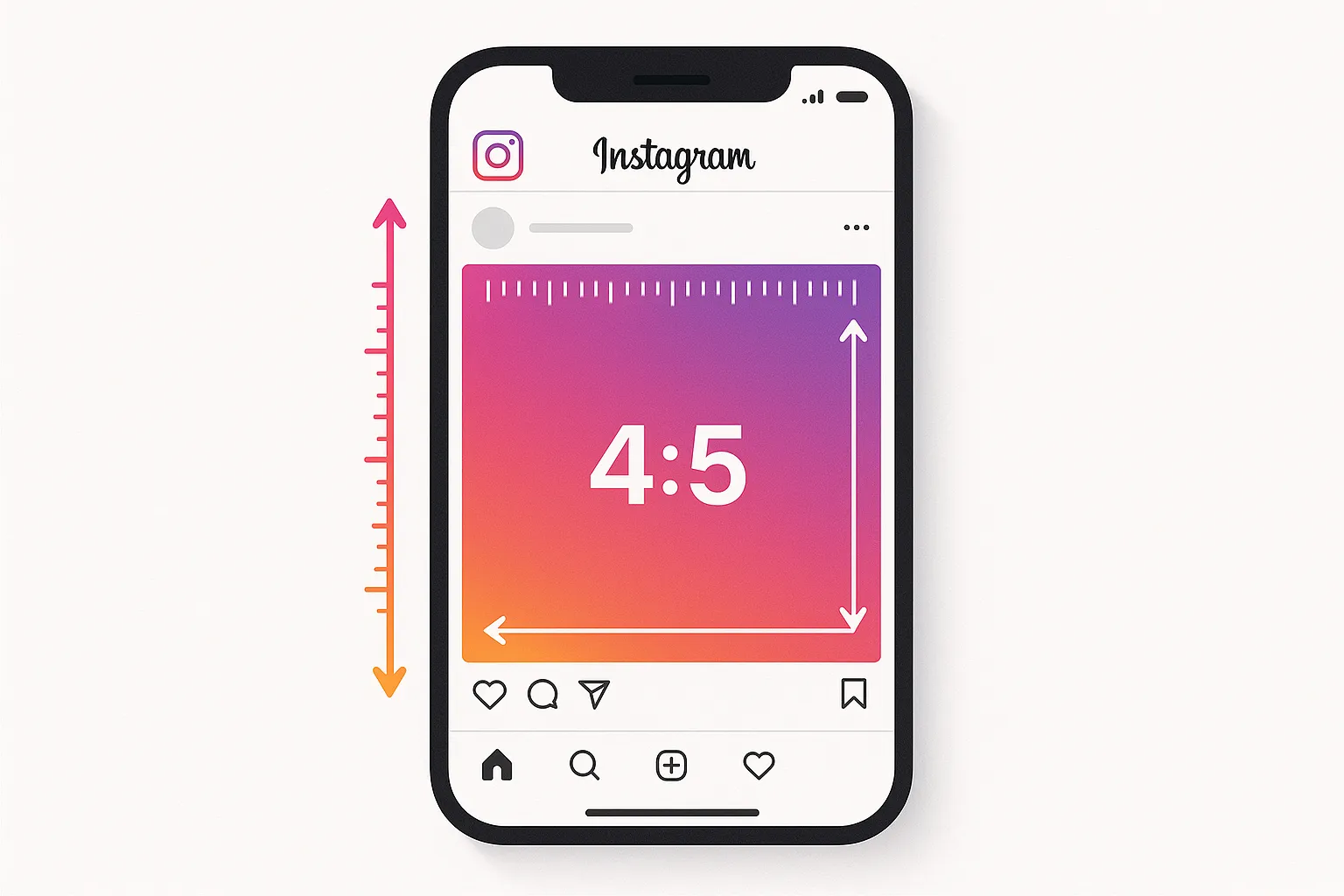
Portrait Posts (4:5)
Dimensions: 1080 x 1350 pixels
Portrait is the highest-performing feed format in 2026, and it is not close. A 4:5 portrait post takes up significantly more screen real estate in the feed than a square or landscape post. More screen space means more time the user spends looking at your content before scrolling past, which translates to higher engagement rates.
The math is simple: a portrait post fills roughly 20% more vertical space in the feed than a square post. That extra real estate gives your image, caption preview, and call to action more room to make an impression before the user scrolls to the next post.
When to use portrait:
- Single-image posts where you want maximum visual impact in the feed
- Before-and-after comparisons stacked vertically
- Screenshots or step-by-step tutorials that benefit from vertical space
- Any post where engagement is the priority (which should be most of your posts)
Landscape Posts (1.91:1)
Dimensions: 1080 x 566 pixels
Landscape is the least recommended format for Instagram feed posts in 2026. It takes up the least screen space in the feed, which means users scroll past it faster. The only time landscape makes sense is when the content was originally shot in 16:9 (like a YouTube thumbnail or a traditional photograph) and cropping to square or portrait would ruin the composition.
When to use landscape:
- Panoramic photography where the horizontal sweep is the point of the image
- YouTube thumbnail repurposing (though even here, consider redesigning for 4:5)
- Wide product shots (group shots, flat lays, workspace setups)
If you are repurposing content from YouTube or a blog and the image is 16:9, consider adding vertical padding (colored bars or blurred background extensions) to convert it to 4:5 rather than posting it as landscape. The engagement difference is measurable. For more on adapting content across formats, check out our guide on how to repurpose content across platforms.
Feed Post Dimensions at a Glance
| Format | Aspect Ratio | Dimensions (px) | Best For | Feed Performance |
|---|---|---|---|---|
| Square | 1:1 | 1080 x 1080 | Quotes, products, grid aesthetics | Good |
| Portrait | 4:5 | 1080 x 1350 | Most content — max screen real estate | Best |
| Landscape | 1.91:1 | 1080 x 566 | Panoramic photos, YouTube reposts | Lowest |
What Are the Instagram Stories Dimensions?
Dimensions: 1080 x 1920 pixels
Aspect Ratio: 9:16
Stories fill the entire phone screen. That full-screen vertical format is what makes them immersive — there is no feed chrome, no competing content, just your Story taking up every pixel. But that immersive format also means there is zero margin for error with your dimensions.
If your Story is not exactly 9:16, Instagram will either crop it (cutting off the edges of your image or video) or add blurred background padding (which looks unprofessional). Neither outcome is what you want.
What Are the Safe Zones for Instagram Stories?
Even though the full canvas is 1080x1920, you cannot use all of it equally. Instagram overlays UI elements on top of your Story: your username and profile picture at the top, interactive elements in various positions, and the message bar at the bottom. Content placed in these areas gets obscured.
The safe zone for key content (text, logos, important visual elements) is:
- Top: Keep at least 250 pixels from the top edge clear — this is where your profile picture, username, and Story timer appear
- Bottom: Keep at least 270 pixels from the bottom edge clear — this is where the message bar, swipe-up indicator, and link sticker typically sit
- Sides: Keep at least 50 pixels from each side to avoid edge clipping on different phone models
That gives you an effective safe zone of roughly 980 x 1400 pixels in the center of your 1080x1920 canvas. Design your Story to fill the full 1080x1920 with background imagery or color, but keep all critical content — text, CTAs, product shots, logos — within the safe zone.
Stories File Requirements
| Specification | Photo Stories | Video Stories |
|---|---|---|
| Dimensions | 1080 x 1920 px | 1080 x 1920 px |
| Aspect Ratio | 9:16 | 9:16 |
| File Format | JPG, PNG | MP4, MOV |
| Max File Size | 30 MB | 4 GB |
| Max Duration | Displays for 5 seconds | 60 seconds per segment |
| Recommended Resolution | 1080 x 1920 minimum | 1080 x 1920 minimum |
What Are the Instagram Reels Dimensions?
Dimensions: 1080 x 1920 pixels
Aspect Ratio: 9:16
Reels use the same dimensions as Stories — 1080x1920, full-screen vertical — but they have different requirements and considerations because they are distributed differently. While Stories only reach your followers and disappear after 24 hours, Reels are shown to non-followers through the Reels tab and Explore page. They are Instagram's primary discovery mechanism in 2026.
This means your Reels need to look polished not just for your existing audience, but for people discovering your account for the first time. First impressions matter, and blurry or poorly formatted Reels kill your chances of converting a viewer into a follower.
What Are the Safe Zones for Instagram Reels?
Reels have their own UI overlay that differs from Stories. When a Reel appears in the Reels feed, the right side shows interaction buttons (like, comment, share, save, audio), and the bottom shows your caption text, audio attribution, and username. In the regular feed, Reels get cropped to a 4:5 preview.
This creates two sets of safe zones you need to consider:
- Full-screen Reels feed: Keep key content away from the right edge (last 200px) where interaction buttons appear, and away from the bottom 350px where caption and audio info overlay
- Feed preview (4:5 crop): When your Reel appears in someone's main feed, it gets cropped from 9:16 to 4:5. This means the top and bottom portions are cut off. The visible area is roughly the center 1080x1350 pixels of your 1080x1920 frame
Reels Video Specifications
| Specification | Requirement |
|---|---|
| Dimensions | 1080 x 1920 px |
| Aspect Ratio | 9:16 (full-screen vertical) |
| Max Duration | Up to 15 minutes (90 seconds recommended for reach) |
| Min Duration | 3 seconds |
| File Format | MP4 (H.264 codec, AAC audio) |
| Max File Size | 4 GB |
| Frame Rate | 30 fps (60 fps supported) |
| Video Bitrate | 5-8 Mbps recommended |
| Audio Bitrate | 128 kbps minimum (256 kbps recommended) |
| Cover Image | 1080 x 1920 px (displayed at 1:1 on grid) |
Reels are the highest-reach format on Instagram right now. If you are putting effort into any content type, make sure your Reels specs are perfect. For a deeper comparison of Reels versus TikTok and where to focus your effort, see our breakdown of Instagram Reels vs TikTok.
What Are the Instagram Carousel Dimensions?
Dimensions: 1080 x 1080 (square) or 1080 x 1350 (portrait) pixels
Aspect Ratio: 1:1 or 4:5
Carousels are multi-slide posts that users swipe through. They are one of the highest-engagement formats on Instagram because the swipe mechanic keeps users on your post longer, which signals the algorithm that your content is valuable. Carousel posts consistently outperform single-image posts for both reach and engagement.
The critical thing to know about carousel dimensions: all slides in a carousel must use the same aspect ratio. The first slide sets the aspect ratio for the entire carousel. If your first slide is 4:5, every subsequent slide will be displayed at 4:5. If your first slide is square, all slides will be square.
Carousel Dimension Rules
- Consistent aspect ratio: All slides use the aspect ratio of the first slide. You cannot mix square and portrait slides in the same carousel
- Maximum slides: Up to 20 slides per carousel (increased from 10 in previous years)
- Mixed media: You can mix photos and videos within a single carousel. Each follows its respective file requirements but must share the same aspect ratio
- Recommended format: Use 4:5 (1080x1350) for carousels. The extra vertical space gives you more room for content on each slide, and the larger format captures more attention in the feed
Carousel Format Comparison
| Specification | Square Carousel | Portrait Carousel |
|---|---|---|
| Dimensions | 1080 x 1080 px | 1080 x 1350 px |
| Aspect Ratio | 1:1 | 4:5 |
| Max Slides | 20 | 20 |
| Photo Formats | JPG, PNG | JPG, PNG |
| Video Formats | MP4, MOV | MP4, MOV |
| Max Photo File Size | 30 MB per slide | 30 MB per slide |
| Max Video Duration | 60 seconds per slide | 60 seconds per slide |
| Feed Performance | Good | Best (more screen space) |
What Are the Instagram Profile Picture Dimensions?
Dimensions: 320 x 320 pixels (displayed at 110 x 110 on mobile)
Aspect Ratio: 1:1 (displayed as a circle)
Your profile picture seems like a minor detail compared to post dimensions, but it appears everywhere — in the feed next to your posts, in Stories, in comments, in DMs, in Explore, in search results. It is your visual identity on the platform, and it needs to be sharp at very small sizes.
Instagram stores profile pictures at 320x320 pixels, but displays them much smaller — 110x110 on mobile and 150x150 on desktop. The circular crop means corners are cut off, so any important element (text, face, logo) needs to be centered.
Profile Picture Best Practices
- Upload at 320x320 minimum. You can upload larger (Instagram will downscale), but going below 320x320 results in visible pixelation
- Use a high-contrast image. Your profile picture appears tiny in most contexts. Low-contrast images become indistinguishable blobs at 110px. High contrast between the subject and background ensures recognition at small sizes
- Center everything. The circular crop removes the corners. Do not put text, logo edges, or important details near the corners of your square source file
- Skip small text. Text smaller than about 20% of the image width becomes illegible at 110px. If you use text (like initials or an acronym), make it large and bold
- Consistent with other platforms. Use the same profile picture across Instagram, TikTok, YouTube, Threads, X, and other platforms for brand recognition. When someone discovers you on one platform and searches for you on another, a consistent avatar helps them confirm they found the right account
For more on building a recognizable visual identity across all your social accounts, see our social media branding guide.
What Are the IGTV Dimensions?
Dimensions: 1080 x 1920 pixels (vertical) or 1920 x 1080 pixels (horizontal)
Aspect Ratio: 9:16 (vertical) or 16:9 (horizontal)
IGTV has largely been merged into the standard Instagram video experience. When you upload a video longer than 90 seconds, it is treated as a long-form video post (what was formerly IGTV). While the IGTV branding has been retired, the format still exists functionally.
Long-form video on Instagram supports both vertical (9:16) and horizontal (16:9) aspect ratios. In practice, vertical performs significantly better because it fills the screen natively when viewed in-app, while horizontal videos show with large black bars above and below on mobile.
Long-Form Video (formerly IGTV) Specifications
| Specification | Requirement |
|---|---|
| Dimensions (vertical) | 1080 x 1920 px |
| Dimensions (horizontal) | 1920 x 1080 px |
| Aspect Ratio | 9:16 (vertical) or 16:9 (horizontal) |
| Min Duration | 1 minute |
| Max Duration | 60 minutes (for most accounts) |
| File Format | MP4 (H.264, AAC) |
| Max File Size | 3.6 GB |
| Cover Image | 420 x 654 px (1:1.55 ratio) |
| Frame Rate | 30 fps minimum |
Complete Instagram Dimensions Cheat Sheet
Here is every Instagram format dimension in one reference table. Save this or bookmark this page — you will come back to it every time you create content.
| Format | Dimensions (px) | Aspect Ratio | File Types | Max File Size |
|---|---|---|---|---|
| Feed Post (Square) | 1080 x 1080 | 1:1 | JPG, PNG | 30 MB |
| Feed Post (Portrait) | 1080 x 1350 | 4:5 | JPG, PNG | 30 MB |
| Feed Post (Landscape) | 1080 x 566 | 1.91:1 | JPG, PNG | 30 MB |
| Stories | 1080 x 1920 | 9:16 | JPG, PNG, MP4, MOV | 30 MB (photo) / 4 GB (video) |
| Reels | 1080 x 1920 | 9:16 | MP4 | 4 GB |
| Carousel | 1080 x 1080 or 1080 x 1350 | 1:1 or 4:5 | JPG, PNG, MP4, MOV | 30 MB (photo) / 4 GB (video) |
| Profile Picture | 320 x 320 | 1:1 (circular crop) | JPG, PNG | N/A |
| Long-Form Video | 1080 x 1920 or 1920 x 1080 | 9:16 or 16:9 | MP4 | 3.6 GB |
What File Formats Does Instagram Support?
Getting your dimensions right is half the battle. The other half is using the correct file format and understanding how Instagram handles each one. Using the wrong format does not mean your upload fails — Instagram accepts most common formats — but it does mean your content might go through unnecessary conversion steps that degrade quality.
Photo Formats
- JPG (JPEG): The preferred format for Instagram photos. JPG files are compressed efficiently, and Instagram's processing pipeline is optimized for them. Use JPG for photographs and any image with complex colors, gradients, or photographic elements. Export at 95-100% quality
- PNG: Best for graphics, text overlays, screenshots, logos, and any image that needs crisp edges. PNG files are larger than JPG but preserve sharp lines and text without compression artifacts. Instagram will convert PNG to JPG server-side for display, but uploading as PNG preserves more quality during that conversion
- HEIC: Natively supported on iOS devices. Instagram accepts HEIC uploads, but converts them to JPG internally. There is sometimes a slight quality drop during conversion. If maximum quality matters, convert HEIC to JPG or PNG before uploading
- WebP: Accepted by Instagram but converted to JPG. Same conversion considerations as HEIC
- BMP, TIFF: Not natively supported for upload. Convert to JPG or PNG first
Video Formats
- MP4 (H.264): The gold standard for Instagram video. If you export your videos in MP4 format with H.264 encoding and AAC audio, you are giving Instagram exactly what it wants. This minimizes re-encoding and quality loss
- MOV: Accepted for Stories and carousel videos. MP4 is still preferred as MOV files tend to be larger and sometimes trigger additional re-encoding
- AVI, WMV, FLV: Not recommended. While Instagram may accept some of these through certain upload paths, they will be heavily re-encoded, which degrades quality
What Is the Best Export Format for Maximum Quality?
For photos, export as JPG at 95% quality or PNG if the image has text, sharp lines, or transparency. For videos, export as MP4 with these settings:
- Codec: H.264
- Audio: AAC at 128-256 kbps
- Frame rate: 30 fps (match your source material)
- Bitrate: 5-8 Mbps for 1080p content
- Color space: sRGB for photos, Rec. 709 for video
| Content Type | Best Format | Alternative | Quality Tip |
|---|---|---|---|
| Photographs | JPG (95% quality) | PNG | sRGB color space |
| Graphics / Text | PNG | JPG (100% quality) | Crisp edges preserved |
| Reels / Stories Video | MP4 (H.264) | MOV | 5-8 Mbps bitrate |
| Carousel (mixed) | JPG + MP4 | PNG + MOV | Same aspect ratio all slides |
How Does Instagram Compress Your Images and Videos?
This is the part most guides skip, and it is arguably the most important section in this entire article. Even if you use the perfect dimensions and the correct file format, Instagram will re-compress your content during upload. Understanding this compression — and working with it instead of against it — is what separates amateur-looking posts from professional ones.
How Does Instagram Photo Compression Work?
Instagram applies lossy compression to every photo uploaded. The compression targets are roughly:
- Photos wider than 1080px are downscaled to 1080px width (maintaining aspect ratio)
- Photos smaller than 320px wide are upscaled to 320px — which introduces visible blurriness
- JPEG quality is reduced to approximately 70-85% (varies based on file size and content complexity)
- Color information is subtly shifted to a narrower gamut
- Fine details (texture, grain, small text) suffer the most from compression
How Can You Minimize Quality Loss from Compression?
You cannot avoid Instagram's compression entirely, but you can minimize its impact:
- Export at exactly 1080px wide. Do not upload a 4000px wide image and let Instagram downscale it. Export your image at the exact target width (1080px) so Instagram does not need to resize. The only resizing that happens is compression, not downscaling plus compression
- Slightly sharpen before uploading. Instagram's compression softens edges and fine details. Applying a subtle sharpening pass (unsharp mask at 10-20% with a small radius) before export counteracts the softening from compression. Do not over-sharpen — the goal is to compensate for the softening, not to create visible halos
- Avoid heavy gradients. Smooth gradients (like gradient backgrounds or sky gradients) are particularly susceptible to compression banding — visible steps where the gradient should be smooth. If you use gradients, add a subtle noise overlay (1-3%) to break up the banding
- Use sRGB color space. Export in sRGB, not Adobe RGB or ProPhoto RGB. Instagram converts everything to sRGB anyway, and the conversion can shift colors unexpectedly if you start in a wider color space
- Stay under file size thresholds. While Instagram allows up to 30MB for photos, uploading close to the limit triggers more aggressive compression. Aim for under 8MB for photos — this gives Instagram less reason to compress aggressively
- Upload via the mobile app when possible. Instagram's mobile upload pipeline has historically produced slightly better quality than browser or desktop uploads. The difference is subtle but real
How Does Instagram Video Compression Work?
Video compression is more aggressive than photo compression because video files are much larger. Instagram re-encodes every video regardless of your original codec settings.
- Videos are re-encoded to H.264 at a lower bitrate than your source
- Fast motion, detailed textures, and rapid scene changes suffer the most because they require more data to encode clearly
- Dark scenes compress poorly — noise and grain in dark areas become blocky compression artifacts
- Audio is re-encoded to approximately 128 kbps AAC regardless of your source quality
To minimize video compression artifacts:
- Export at a higher bitrate than Instagram's target (8-10 Mbps for 1080p) so there is quality headroom when Instagram re-encodes
- Avoid shooting in very low light — well-lit footage compresses significantly better
- Use cuts instead of continuous motion when possible. Rapid pans and zooms create the worst compression artifacts
- Keep your source frame rate at 30 fps. Higher frame rates (60fps) mean Instagram must either drop frames or compress each frame more aggressively
What Aspect Ratios Does Instagram Support?
Aspect ratio is the proportional relationship between width and height. Instagram supports a range of aspect ratios across its formats, but the platform enforces boundaries — if your content falls outside the supported range, Instagram crops it to fit.
Supported Aspect Ratios by Format
| Format | Minimum Ratio | Maximum Ratio | Recommended Ratio |
|---|---|---|---|
| Feed Photo | 4:5 (portrait) | 1.91:1 (landscape) | 4:5 |
| Feed Video | 4:5 | 16:9 | 4:5 or 9:16 |
| Stories | 1:1 (with padding) | 9:16 | 9:16 |
| Reels | 1:1 (with padding) | 9:16 | 9:16 |
| Carousel | 4:5 | 1.91:1 | 4:5 |
| Profile Picture | 1:1 | 1:1 | 1:1 |
What Happens If You Use a Non-Standard Aspect Ratio?
If you upload an image or video outside the supported aspect ratio range, Instagram auto-crops it. The platform crops from the center outward, which means content at the edges of your frame gets cut. You do not get to choose the crop point (though you can adjust it slightly when posting through the app).
For example, if you upload a standard 16:9 widescreen photo as a feed post, Instagram will crop it to 1.91:1, cutting off the far left and right edges. If you upload a very tall 9:16 image as a feed post, Instagram will crop it to 4:5, cutting off the top and bottom.
The takeaway: always design for the target aspect ratio from the start. Do not design at one ratio and hope Instagram's crop will be kind. It will not be.
How Should You Resize Images for Instagram?
You have a photo or graphic that was not designed for Instagram's dimensions. Maybe it is a 16:9 YouTube thumbnail, a 2:3 Pinterest pin, a horizontal blog header, or a raw photo from your camera at 3:2. How do you resize it without ruining it?
Method 1: Crop to Target Ratio
The simplest approach. Open your image in any editor (Photoshop, Canva, Figma, even your phone's Photos app), set the crop tool to the target aspect ratio (like 4:5), and adjust the crop frame to include the most important part of the image. Export at 1080px wide.
When this works: the important content is centered or flexible enough that losing the edges does not matter.
When this fails: the image has important elements near the edges, like text at the top, a product at the bottom, or a person standing at the side of the frame.
Method 2: Add Background Padding
Instead of cropping into your image, expand the canvas to the target ratio and fill the added space with a background color, pattern, or blurred version of the image. This preserves the full original image while fitting Instagram's aspect ratio.
This technique is especially useful for converting landscape (16:9) content to portrait (4:5). You place the landscape image in the center of a 4:5 canvas, then fill the space above and below with a complementary background.
Method 3: Content-Aware Fill or AI Expansion
Modern tools like Photoshop's generative fill and various AI image expanders can extend the edges of a photo intelligently. If you have a tightly framed headshot and need to convert from square to portrait, AI can generate plausible background content to fill the extended canvas. The results vary — they work well for simple, uniform backgrounds (solid colors, sky, blurred bokeh) and poorly for complex scenes or patterns that need to match precisely.
Method 4: Template-Based Design
Instead of resizing existing images, design within pre-made templates at the correct dimensions from the start. Tools like Canva, Figma, and Adobe Express offer Instagram-specific templates at all standard dimensions. Start your design process at the target dimensions and you never need to resize.
How Do Instagram Dimensions Compare to Other Platforms?
If you post to multiple platforms — and in 2026, most creators and businesses should — you need to know how Instagram's dimensions compare to TikTok, YouTube, X (Twitter), Threads, Pinterest, and Bluesky. Each platform has its own preferred dimensions, and what works perfectly on Instagram may get cropped or distorted elsewhere.
Cross-Platform Dimension Comparison
| Platform | Feed Image | Vertical Video | Stories | Profile Picture |
|---|---|---|---|---|
| 1080x1350 (4:5) | 1080x1920 (9:16) | 1080x1920 (9:16) | 320x320 | |
| TikTok | N/A | 1080x1920 (9:16) | 1080x1920 (9:16) | 200x200 |
| YouTube Shorts | N/A | 1080x1920 (9:16) | N/A | 800x800 |
| X (Twitter) | 1600x900 (16:9) | 1080x1920 (9:16) | N/A | 400x400 |
| Threads | 1080x1350 (4:5) | 1080x1920 (9:16) | N/A | 320x320 |
| 1000x1500 (2:3) | 1080x1920 (9:16) | 1080x1920 (9:16) | 165x165 | |
| Bluesky | 2000x2000 (1:1) | N/A | N/A | 1000x1000 |
Notice the pattern: 1080x1920 (9:16) has become the universal vertical video dimension across every major platform. If you create vertical video at 1080x1920, it works natively on Instagram Reels, TikTok, YouTube Shorts, and Pinterest Idea Pins without any resizing. Feed images are where the discrepancies live — Instagram's 4:5 is different from X's 16:9, Pinterest's 2:3, and Bluesky's preference for 1:1.
This is where multi-platform tools become genuinely useful. If you are managing content across 3+ platforms, manually resizing every image for each platform's preferred dimensions is a time sink. Tools like cross-post let you publish to Instagram, TikTok, YouTube, X, Threads, Bluesky, and Pinterest from a single dashboard, which eliminates the workflow of exporting multiple versions of every piece of content. You can read more about efficient multi-platform workflows in our guide on managing multiple social media accounts.
What Are Common Instagram Dimension Mistakes?
Even experienced creators make dimension mistakes that cost them reach and engagement. Here are the most common ones and how to avoid them.
Mistake 1: Uploading Landscape Feed Posts When Portrait Is Better
A landscape post occupies roughly 40% less screen area in the feed than a portrait post. That is 40% less opportunity to capture attention as someone scrolls. Unless your content absolutely requires a horizontal format, default to 4:5 portrait.
Mistake 2: Putting Text in Reel Crop Zones
Your Reel is 9:16, but it displays as 4:5 in the main feed and 1:1 on your profile grid. If you place text or key visuals at the top or bottom of your 9:16 frame, they are invisible in the feed preview and on your grid. Always keep critical elements in the center 1080x1080 area.
Mistake 3: Uploading Low-Resolution Images
Images below 1080px wide get upscaled by Instagram, which makes them blurry. This is especially common when people screenshot content from other apps, save images from the web, or export from tools at low resolution. Always export at 1080px wide minimum.
Mistake 4: Ignoring the Story Safe Zone
Placing text or calls to action in the top 250px or bottom 270px of a Story means they are obscured by Instagram's UI elements. Every Story template should account for the safe zone.
Mistake 5: Mixing Aspect Ratios in Carousels
If your first carousel slide is portrait (4:5) but you designed later slides at square (1:1), the square slides will be stretched or cropped to match the 4:5 ratio set by the first slide. All slides must be created at the same aspect ratio.
Mistake 6: Using the Wrong Color Space
Exporting in CMYK (print) or Adobe RGB (wide gamut) instead of sRGB causes color shifts on Instagram. The vibrant reds in your design tool become muted reds on Instagram. Always export in sRGB.
Mistake 7: Ignoring Compression
Uploading a 25MB JPG does not mean it will look better than a well-optimized 3MB JPG. In fact, it might look worse because Instagram applies heavier compression to larger files. Optimize your files before uploading — target 1-8MB for photos.
What Resolution Should You Use for Instagram in 2026?
Resolution and dimensions are related but not identical. Dimensions are the pixel count (1080x1350). Resolution (DPI/PPI) describes how densely those pixels are packed in a physical space. For digital content like Instagram posts, the only thing that matters is pixel dimensions — DPI is irrelevant because the content is only viewed on screens, not printed.
The 1080px Standard
Instagram's rendering width is 1080 pixels. Every image is displayed at a maximum of 1080px wide on the highest-resolution devices. This has been the standard since 2015, and it remains unchanged in 2026.
- 1080px wide is the target. Design and export at 1080px wide for all Instagram content. This matches the platform's display width and avoids unnecessary upscaling or downscaling
- Below 1080px = quality loss. Anything narrower than 1080px gets upscaled, which introduces blur. The effect is especially noticeable on text, sharp edges, and detailed textures
- Above 1080px = diminishing returns. Instagram downscales images wider than 1080px. The downscaling algorithm is decent, so slight oversize (like 1200px) does not hurt. But uploading a 5000px-wide image does not make it look better than a 1080px-wide image — it just increases upload time and may trigger more aggressive compression
- The 2x trick: Some creators export at 2160px wide (2x the 1080px target) to give Instagram more source data. The theory is that Instagram's downscaling preserves more detail than its compression removes. Results are mixed and content-dependent — test it with your own images
What DPI Should You Use for Instagram?
It does not matter. DPI only affects print output. A 1080x1350 image at 72 DPI looks identical to a 1080x1350 image at 300 DPI on any screen, including Instagram. The pixel count is the same; only the embedded metadata about print size differs.
That said, most design tools default to 72 DPI for screen work, and there is no reason to change it. If you are exporting from a print-focused tool like InDesign that defaults to 300 DPI, just make sure the pixel dimensions are correct (1080px wide) and ignore the DPI setting.
How Do You Optimize Videos for Instagram?
Video optimization is more nuanced than image optimization because videos have more variables — resolution, frame rate, bitrate, codec, audio, duration — and each affects both quality and file size. Here is how to get the best results for every video format on Instagram.
Optimal Export Settings for Instagram Video
| Setting | Reels | Stories | Feed Video | Long-Form |
|---|---|---|---|---|
| Resolution | 1080 x 1920 | 1080 x 1920 | 1080 x 1350 | 1080 x 1920 |
| Frame Rate | 30 fps | 30 fps | 30 fps | 30 fps |
| Video Bitrate | 5-8 Mbps | 5-8 Mbps | 5-8 Mbps | 8-12 Mbps |
| Audio Codec | AAC | AAC | AAC | AAC |
| Audio Bitrate | 256 kbps | 128 kbps | 256 kbps | 256 kbps |
| Codec | H.264 | H.264 | H.264 | H.264 |
| Max Duration | 15 min | 60 sec | 60 min | 60 min |
Should You Use H.265 (HEVC) Instead of H.264?
H.265 produces smaller files at the same quality, which seems like a win. But Instagram re-encodes everything to H.264 anyway, so uploading in H.265 means your video goes through two generations of compression: H.265 decoding then H.264 re-encoding. This can introduce additional quality loss compared to uploading in H.264 directly. Stick with H.264 for Instagram uploads.
What About 4K Video?
Instagram does not display content at 4K. The maximum display resolution is 1080px wide. Uploading 4K video (3840x2160) means Instagram must downscale it significantly, and the resulting file after Instagram's compression will look essentially identical to a well-encoded 1080p source. Save yourself the upload time and export at 1080p.
Exception: if your editing workflow is 4K-native and your export tool handles the downscale well, there is no harm in uploading 4K — Instagram handles the conversion. But do not go out of your way to shoot or edit in 4K specifically for Instagram.
How Do You Create Content at Multiple Dimensions Efficiently?
If you are posting to Instagram, TikTok, YouTube, X, Pinterest, and other platforms, you are dealing with at least 3-4 different dimension requirements. Creating separate assets for each platform from scratch is a massive time waste. Here is how to be efficient about it.
The Master Canvas Approach
Design at the largest needed dimension first, then adapt down:
- Start at 1080x1920 (9:16). This is the largest common format (Stories, Reels, TikTok, YouTube Shorts). Design your content to work at this size first
- Crop to 1080x1350 (4:5). For Instagram feed and carousel. The center portion of your 9:16 design should work as a standalone 4:5 image. This is why keeping key content centered matters
- Crop to 1080x1080 (1:1). For platforms that prefer square, and for your Instagram grid thumbnail. Again, the center of your 4:5 crop
- Adapt to 1000x1500 (2:3). For Pinterest, if needed
If you plan your original design with these crops in mind, you can create one master design and derive all needed formats from it in minutes.
Using Scheduling Tools for Multi-Platform Dimensions
The most efficient workflow is not to resize manually at all. When you use a cross-posting tool like cross-post to publish content to multiple platforms simultaneously, you upload your media once and the platforms handle their own display formatting. For vertical video (Reels, TikTok, Shorts), the 1080x1920 format works universally. For images, you may still want to create platform-specific versions for optimal display, but at minimum you eliminate the manual posting step across 5-7 platforms.
For tips on batching this process effectively, check out our guide on batch creating a week of social media content in 2 hours.
What Are Instagram Ad Dimensions?
If you run Instagram ads, the dimensions differ slightly from organic posts because ads support additional placements (like the Explore feed and the search results page) with their own display requirements.
Instagram Ad Dimensions by Placement
| Placement | Dimensions (px) | Aspect Ratio | File Types | Max File Size |
|---|---|---|---|---|
| Feed Ad (Image) | 1080 x 1080 or 1080 x 1350 | 1:1 or 4:5 | JPG, PNG | 30 MB |
| Feed Ad (Video) | 1080 x 1080 or 1080 x 1350 | 1:1 or 4:5 | MP4, MOV | 4 GB |
| Story Ad | 1080 x 1920 | 9:16 | JPG, PNG, MP4, MOV | 30 MB (photo) / 4 GB (video) |
| Reels Ad | 1080 x 1920 | 9:16 | MP4 | 4 GB |
| Explore Ad | 1080 x 1080 or 1080 x 1350 | 1:1 or 4:5 | JPG, PNG, MP4 | 30 MB (photo) / 4 GB (video) |
| Carousel Ad | 1080 x 1080 | 1:1 | JPG, PNG, MP4 | 30 MB per card |
Note that carousel ads are limited to square (1:1) format, unlike organic carousels which support both 1:1 and 4:5. This is a Meta Ads Manager limitation, not an Instagram limitation, and it is worth keeping in mind if you plan to boost an organic carousel post — the ad version may display differently.
Do Instagram Dimensions Change Frequently?
Instagram's core dimensions have been remarkably stable. The 1080px width standard has been in place since 2015. The 4:5 maximum portrait ratio was introduced in 2015 and has not changed. The 9:16 Stories format has been standard since Stories launched in 2016. Reels adopted the same 9:16 format when they launched in 2020.
What does change periodically:
- Maximum video duration: Reels have expanded from 15 seconds to 30, then 60, then 90, and now up to 15 minutes. This trend of increasing duration limits will likely continue
- Maximum carousel slides: Increased from 10 to 20 in recent years
- Profile picture display sizes: Minor adjustments as the app UI evolves
- Safe zones: These shift slightly as Instagram redesigns its UI overlays
- Compression algorithms: Instagram regularly tweaks its compression, sometimes improving quality, sometimes degrading it. This is invisible to creators but affects output quality
The dimensions in this guide are current as of 2026. We update this post when Instagram makes changes. The core dimensions (1080px width, 4:5 feed, 9:16 vertical) are unlikely to change in the near future.
What Tools Help You Get Instagram Dimensions Right?
You do not need expensive software to create content at the right dimensions. Here are the tools that make dimension management easy at every price point.
Free Tools
- Canva (free tier): Pre-built templates at every Instagram dimension. Select "Instagram Post," "Instagram Story," or "Instagram Reel" and you start with the correct canvas size. Also has a magic resize feature (paid) that adapts designs across dimensions
- Figma (free tier): Professional design tool with frame presets for social media dimensions. Best for creators who want full design control and work with custom layouts
- CapCut: Free video editor with Instagram Reels presets (1080x1920). Excellent for video resizing, padding, and format conversion
- Photopea: Free browser-based Photoshop alternative. Create canvases at any custom dimension, export as JPG/PNG at specific quality levels
Paid Tools
- Adobe Photoshop / Illustrator: Maximum control over dimensions, resolution, compression, color space, and export settings. Artboard workflows for multi-dimension design
- Adobe Premiere Pro / DaVinci Resolve: Professional video export with precise control over resolution, codec, bitrate, and frame rate settings
- Canva Pro: Magic Resize feature that converts one design to multiple dimensions with one click. Worth it if you regularly create content for multiple platforms
For a comprehensive list of creator tools, including free options for design, video editing, and scheduling, check out our roundup of free social media tools every creator should know.
How Do You Check if Your Content Meets Instagram's Specifications?
Before you hit publish, verify your content meets Instagram's requirements. Here is a quick pre-publish checklist.
Pre-Publish Dimension Checklist
| Check | Feed Post | Story | Reel | Carousel |
|---|---|---|---|---|
| Width is 1080px | ✓ | ✓ | ✓ | ✓ |
| Correct aspect ratio | ✓ | ✓ | ✓ | ✓ |
| sRGB color space | ✓ | ✓ | N/A | ✓ |
| Under max file size | ✓ | ✓ | ✓ | ✓ |
| Safe zones clear | N/A | ✓ | ✓ | N/A |
| Key content in center 1080x1080 | ✓ | N/A | ✓ | ✓ |
| H.264 codec (video) | N/A | ✓ | ✓ | ✓ |
| Consistent ratio (all slides) | N/A | N/A | N/A | ✓ |
How to Check Image Dimensions
- Mac: Right-click the file, select "Get Info," and check the dimensions under "More Info"
- Windows: Right-click the file, select "Properties," go to the "Details" tab, and find the dimensions
- Phone: Open the image in your gallery app and look at the file details (varies by phone model)
- Browser: Upload to a tool like Photopea or Canva and the canvas will show the image dimensions
What Should You Do When Instagram Dimensions Do Not Match Your Content?
Sometimes you have content that simply does not fit Instagram's dimensions. A wide-angle landscape photo at 3:1. A tall infographic at 1:3. A horizontal video from a webinar. Here are practical solutions for each scenario.
Wide Landscape Content (wider than 1.91:1)
Options: crop to 1.91:1 (losing the sides), convert to a multi-slide carousel where each slide shows a section of the panorama, or add top and bottom padding to create a 4:5 frame with the landscape image centered.
Very Tall Content (taller than 4:5)
Options: crop to 4:5 (losing top and bottom), split into a carousel where each slide shows a section of the tall content, or post as a Story (which supports 9:16). Tall infographics work exceptionally well as carousels — each slide becomes one section of the infographic.
Horizontal Video (16:9)
Options: add vertical padding (blurred background or solid color bars) to create a 9:16 frame for Stories/Reels, crop to 4:5 for feed (losing the sides), or post as a landscape feed video (least recommended due to lower engagement). The blurred-background technique is the most common approach for converting YouTube-format videos to Instagram Reels.
Square Content That Needs to Be Vertical
Options: add top and bottom padding to reach 4:5 or 9:16. Use the added space for branding, text overlays, or a blurred extension of the image. Many creators use this technique to convert their 1:1 Instagram posts into 9:16 Stories or Reels — they add a caption above and a CTA below the square image.
Instagram Dimensions FAQ
What is the best image size for Instagram in 2026?
The best overall image size is 1080 x 1350 pixels (4:5 portrait ratio). This format takes up the most screen space in the feed, gets the highest engagement rates, and works well on the profile grid. For Stories and Reels, use 1080 x 1920 pixels (9:16).
Does Instagram reduce photo quality when you upload?
Yes. Instagram applies lossy compression to every image uploaded. You can minimize quality loss by exporting at exactly 1080px wide, using sRGB color space, keeping file sizes under 8MB, and exporting as JPG at 95% quality or PNG for text-heavy graphics. Some compression is unavoidable, but proper export settings keep the degradation minimal.
Can you upload 4K photos to Instagram?
You can upload photos at any resolution, but Instagram downscales everything to a maximum width of 1080 pixels. A 4K photo (3840px wide) will be downscaled to 1080px. The downscaled result will not look meaningfully better than an image exported at 1080px from the start. Save your storage and export at the target dimensions.
What happens if you upload a photo smaller than 1080px wide?
Instagram upscales it to at least 320px wide. Images between 320px and 1080px are displayed at their native size on lower-resolution devices and upscaled on high-resolution devices. The result is visible blurriness, especially on text and fine details. Always export at 1080px wide minimum.
Do Instagram Reels and TikTok use the same dimensions?
Yes. Both platforms use 1080 x 1920 pixels (9:16 aspect ratio) for vertical video. You can use the same video file for both platforms without resizing. The main difference is in safe zones — TikTok's UI overlay is positioned differently from Instagram's, so text placement may need adjustment between platforms.
What aspect ratio should I use for Instagram carousels?
Use 4:5 (1080 x 1350 pixels) for maximum engagement. All slides in a carousel must share the same aspect ratio, and 4:5 gives you the most screen real estate per slide. Square (1:1) carousels also work well if your content is naturally suited to a square format.
How do I create content for multiple platforms without resizing everything?
Design your content at 1080x1920 (9:16) first — this is the largest common format. Then crop the center for 4:5 (feed posts) and 1:1 (grid thumbnails). For vertical video, 1080x1920 works on Instagram, TikTok, YouTube Shorts, and Pinterest without any changes. For scheduling and publishing, use a multi-platform tool to post once and reach all your platforms. Our guide on posting to all social media at once covers this workflow in detail.
What video format does Instagram prefer?
MP4 with H.264 video codec and AAC audio codec. This is Instagram's native format, meaning minimal re-encoding during upload. Export at 30fps, 5-8 Mbps video bitrate, and 128-256 kbps audio bitrate for the best balance of quality and file size.
Final Thoughts: Dimensions Are the Foundation, Not the Ceiling
Getting your dimensions right is necessary but not sufficient for Instagram success. A perfectly sized, well-compressed, correctly formatted post still fails if the content is boring, the caption is weak, or the posting time is wrong. Dimensions are the technical foundation that ensures your creative work displays as intended. They prevent the self-inflicted wounds of cropped images, blurry graphics, and awkward formatting that undermine otherwise good content.
Think of it this way: wrong dimensions are a ceiling that caps your content's potential. Right dimensions remove that ceiling and let your content compete on its actual merits — the idea, the execution, the storytelling, the relevance to your audience.
The cheat sheet version to remember:
- Feed posts: 1080 x 1350 (4:5) — use portrait for maximum impact
- Stories and Reels: 1080 x 1920 (9:16) — full-screen vertical
- Carousels: 1080 x 1350 (4:5) — same aspect ratio across all slides
- Profile picture: 320 x 320 (1:1) — centered, high-contrast
- File format: JPG/PNG for photos, MP4 (H.264) for videos
- Export width: 1080px, sRGB, under 8MB for photos
Bookmark this guide, reference it when you create content, and stop letting dimension mistakes cost you reach. For more on growing your Instagram presence with the right strategy behind your technically sound content, read our guides on growing Instagram followers organically and how the Instagram algorithm works in 2026.
Ready to simplify your social media?
Post to Instagram, YouTube, TikTok, X, Threads, Pinterest, and Facebook from one dashboard.
Get Started Free →