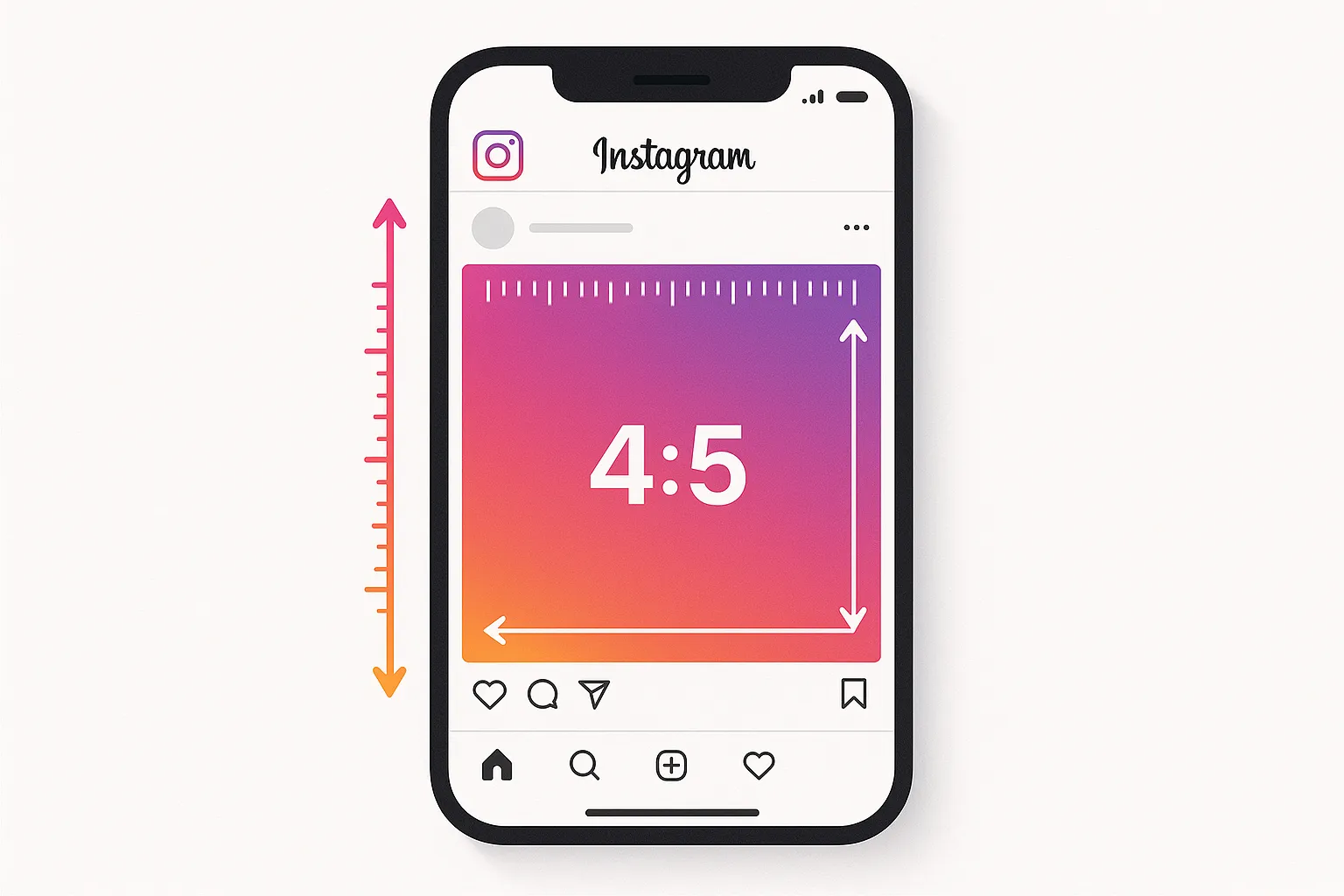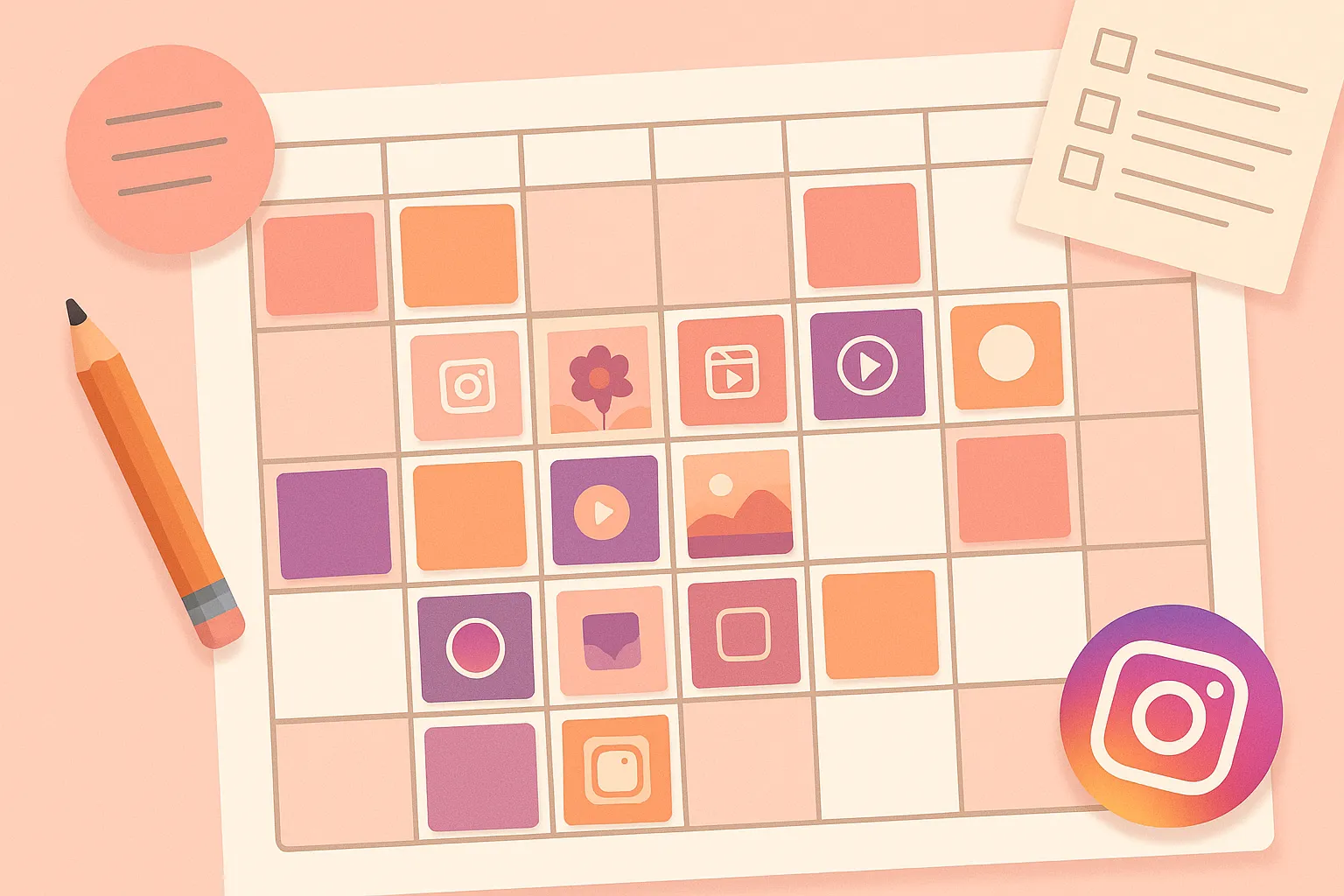
Your Instagram grid is your storefront. Before anyone reads a single caption, watches a Reel, or taps into your Stories, they see your grid. And in that split second, they decide whether you look professional, interesting, and worth following — or whether you look like everyone else. A cohesive, intentional grid does not just look pretty. It signals credibility, builds brand recognition, and directly impacts whether profile visitors become followers.
The problem is that planning an attractive grid manually is painful. You take a screenshot of your current feed, paste a new image next to your last post in a photo editor, squint at it, decide it looks weird, try another photo, repeat fifteen times, give up, and post whatever. There has to be a better way — and there is. Instagram grid planner tools let you drag, drop, rearrange, and preview your entire feed before publishing a single post.
This guide covers the 12 best Instagram grid planner tools available in 2026, from all-in-one scheduling platforms with visual planners to dedicated grid design apps. For each tool, you will get an honest breakdown of features, pricing, strengths, and weaknesses — plus grid layout strategies and tips for maintaining the kind of visual consistency that actually drives growth.
Key Takeaways
- Your grid is still your first impression — While Reels and Stories drive discovery, your grid is what converts profile visitors into followers. A cohesive grid increases follow rates by 30-40% compared to a disorganized one
- Grid planners save hours of guesswork — Instead of posting and hoping it looks good, you can visually arrange your next 9-18 posts and see exactly how they will flow together
- The best grid planner is the one that fits your workflow — Some people want a standalone visual tool, others want grid planning built into their scheduling platform. Both approaches work
- Grid strategy matters more than grid perfection — You do not need pixel-perfect symmetry. You need a recognizable visual pattern that reinforces your brand without requiring hours of design work per post
- Multi-platform tools offer the best value — If you post to Instagram plus other platforms, a tool like cross-post that handles grid planning alongside cross-platform scheduling eliminates the need for multiple subscriptions
- Free tools exist but have real limitations — Most free grid planners cap you at 9-18 preview slots and lack scheduling integration, which means you still need a separate tool to actually publish
Why Does Your Instagram Grid Aesthetic Actually Matter?
There is a persistent debate in the Instagram world about whether grids still matter. The argument against grid curation usually goes something like this: "Nobody scrolls your grid anymore, they just see your posts in the feed." This is partially true — most of your impressions come from the feed, Explore, and Reels tabs, not from direct profile visits. But it misses a critical point about when people visit your grid and why it matters so much at that specific moment.
People visit your grid at the decision point. They have already seen one of your posts or Reels, liked it enough to tap your profile, and are now deciding whether to follow you. This is the highest-intent moment in the Instagram funnel. And your grid is what they see. If the last 9-12 posts look chaotic, inconsistent, or like they belong to five different accounts, the visitor bounces. If the grid looks cohesive, professional, and clearly "about something," they follow.
Research from social media analytics platforms consistently shows that accounts with cohesive grid aesthetics see higher follower conversion rates. The exact numbers vary by niche, but the pattern is clear: a recognizable visual identity makes people trust you faster and follow you more readily.
What Signals Does a Good Grid Send?
- Professionalism — A curated grid signals that you take your content seriously, which builds credibility whether you are a creator, brand, or business
- Clarity of purpose — When someone can look at your grid and immediately understand what your account is about, they can make a quick decision to follow. Confusion kills conversions
- Visual identity — Consistent colors, fonts, and imagery style make your content recognizable even when it appears in the feed without your username visible. This is the foundation of strong social media branding
- Content quality — A planned grid naturally produces higher-quality content because you are thinking about each post in context rather than isolation
- Brand recall — When followers see your consistent style repeatedly, they begin to associate those visual cues with your account. This is the mere exposure effect in action
What Makes a Good Instagram Grid Planner?
Not all grid planners are created equal. Before diving into specific tools, here are the features that separate genuinely useful grid planners from glorified image galleries.
Visual Drag-and-Drop Preview
The core feature. You should be able to upload images and rearrange them in a grid layout that mirrors exactly how your Instagram feed will look. Some tools show your existing posts alongside the planned ones so you can see the full visual transition. Others show only the planned content. The former is significantly more useful because the whole point is seeing how new posts fit with what is already live.
Scheduling Integration
A grid planner that only lets you preview but not schedule is half a tool. The best grid planners let you arrange your visual layout, write captions, set publish times, and auto-post — all in one workflow. If you have to export your planned grid and then manually recreate it in a separate scheduling tool, you are wasting time. For a comprehensive look at scheduling workflows, see our complete scheduling guide.
Multi-Platform Support
If Instagram is your only platform, a standalone grid planner works fine. But most creators and businesses in 2026 post to 4-7 platforms. In that case, you want a tool that handles grid planning for Instagram alongside scheduling for TikTok, YouTube, X, Threads, Bluesky, and Pinterest. Paying for a separate grid planner on top of your scheduling tool adds up fast.
Media Library and Storage
A good grid planner should let you store and organize your media assets — photos, videos, graphics — so you can pull from a library when planning your grid rather than uploading from scratch every time. Folder organization, tagging, and search make this even more useful.
Mobile and Desktop Support
Many creators plan their grids on mobile (since that is how the grid is viewed) but prefer to write captions and manage scheduling on desktop. The best tools work seamlessly on both. An app-only tool with no desktop version, or a desktop-only tool with no mobile app, creates friction.
The 12 Best Instagram Grid Planner Tools for 2026
Here are the tools worth your attention in 2026, organized from best overall value to most specialized. Each has been evaluated on grid planning features, scheduling capabilities, platform support, pricing, and overall user experience.
1. cross-post — Best All-in-One for Multi-Platform Creators
cross-post is a multi-platform scheduling and publishing tool that includes visual content planning capabilities alongside its core strength: posting to Instagram, YouTube, TikTok, X/Twitter, Threads, Bluesky, and Pinterest from a single dashboard.
What makes cross-post particularly valuable for grid planning is that it solves the two biggest pain points simultaneously. First, you can visually plan and preview your Instagram content to ensure your grid looks cohesive. Second, you can schedule that same content to publish across every other platform you use — without switching tools or paying for multiple subscriptions. If you are posting to four or more platforms, this consolidation alone can save you $30-80/month compared to running separate tools.
The interface is refreshingly clean. There is no feature bloat or overwhelming dashboard with dozens of tabs you will never use. You connect your accounts, create your post with media and caption, select your destination platforms, and either publish immediately, schedule for a specific time, drop it into a queue slot, or save it as a draft. The queue system is particularly well-designed — you define recurring time slots (say, Monday/Wednesday/Friday at 10 AM), and content automatically publishes at the next available slot.
For Instagram specifically, cross-post supports feed posts and Reels. The bulk upload feature is a standout — you can upload up to 200 pieces of content at once, assign captions and schedule times, and batch-schedule everything in a single session. This is invaluable for creators who batch-create content and want to load an entire month at once.
Key grid planning features:
- Visual content calendar showing scheduled posts with media thumbnails
- Drag-and-drop scheduling with calendar view
- Media preview before publishing to verify visual consistency
- Queue-based posting with customizable time slots per day
- Bulk upload for batch-scheduling up to 200 posts
Platform support: Instagram, YouTube, TikTok, X/Twitter, Threads, Bluesky, Pinterest
Pricing: Affordable paid plans based on usage, not arbitrary feature gates
Pros:
- 7-platform support including Bluesky and Threads, which many competitors still lack
- Clean, focused interface without feature bloat
- Bulk upload feature for batch scheduling (up to 200 posts)
- Queue-based posting saves significant time for consistent publishers
- Single subscription replaces multiple tool costs
Cons:
- Dedicated grid preview is more functional than flashy compared to design-focused tools like Planoly or Preview
- No built-in image editing or filter tools (you bring your content ready to post)
Best for: Creators and businesses posting to 4+ platforms who want grid planning integrated with their scheduling workflow rather than as a separate tool. If you already use cross-post for multi-platform posting, the visual planning capabilities mean you do not need a separate grid planner at all.
2. Later — Best Dedicated Visual Planner
Later was literally built as a visual Instagram planner before expanding into a broader social media scheduling tool. That DNA shows — the visual planner is the centerpiece of the entire product, and it is genuinely the best standalone grid preview experience on the market.
The way it works: you upload media to your content library, then drag and drop images into a visual grid that mirrors your actual Instagram feed. Your existing published posts are shown alongside the planned ones, so you can see exactly how new content will look next to what is already live. You can swap positions, try different arrangements, and get a pixel-accurate preview of your future feed. It feels like arranging photos on a physical board, which is exactly the experience you want.
Later has also expanded to support TikTok, Pinterest, LinkedIn, YouTube, and X/Twitter, though Instagram remains its strongest suit. The analytics are decent for Instagram — you get best-time-to-post suggestions, engagement breakdowns, and hashtag analytics. The Linkin.bio feature (a clickable landing page linked from your Instagram bio) is a nice bonus for driving traffic.
The main downside is pricing. Later's free plan was significantly reduced in recent years, and the paid plans start around $25/month for the Starter tier (1 social set, 30 posts per profile). If you need more profiles or posts, you are looking at $45-80/month. For a tool that many people primarily use for grid planning, that can feel steep.
Key grid planning features:
- Best-in-class visual grid preview with existing post context
- Drag-and-drop rearrangement of planned posts
- Content library with labels and notes
- Best-time-to-post suggestions
- Linkin.bio landing page builder
Platform support: Instagram, TikTok, Pinterest, LinkedIn, YouTube, X/Twitter
Pricing: Free (very limited), Starter ~$25/month, Growth ~$45/month, Advanced ~$80/month
Pros:
- The visual planner is best-in-class — nobody does grid preview better
- Strong Instagram-specific analytics and hashtag suggestions
- Linkin.bio is a solid bonus feature
- Content library makes it easy to store and organize media
Cons:
- Pricing has increased significantly — not the budget option it used to be
- Free plan is very limited (10 posts per month)
- No Bluesky or Threads support
- The tool feels Instagram-first, with other platforms as afterthoughts
Best for: Instagram-focused creators and brands where grid aesthetics are central to their strategy and they are willing to pay a premium for the best visual planning experience.
3. Planoly — Best for Instagram Aesthetic Brands
Planoly was one of the original Instagram grid planners and remains a strong contender, particularly for fashion, beauty, lifestyle, and design brands where visual cohesion is non-negotiable. The grid planner lets you upload images, rearrange them in your future feed, and see how they sit alongside your existing posts.
What sets Planoly apart is its focus on aesthetics beyond just planning. The tool includes basic photo editing, filters, and a design tool (StoriesEdit) for creating on-brand Instagram Stories. There is also a link-in-bio feature (Sellit) oriented toward e-commerce, letting you tag products in your grid and create a shoppable landing page.
Planoly supports Instagram, Pinterest, TikTok, and YouTube. The Pinterest support is particularly well-integrated — you can plan Pinterest boards visually similar to how you plan your Instagram grid. For creators who are active on both Instagram and Pinterest (a surprisingly effective combination for driving traffic), Planoly handles both well.
Pricing starts at around $16/month for the Starter plan, which includes 1 Instagram profile and 1 Pinterest profile with 30 uploads per month. The Growth plan at ~$28/month adds more uploads and profiles.
Key grid planning features:
- Visual grid planner with existing post context
- Drag-and-drop rearrangement
- Built-in photo editing and filters
- StoriesEdit for Instagram Stories design
- Sellit for shoppable link-in-bio pages
Platform support: Instagram, Pinterest, TikTok, YouTube
Pricing: Starter ~$16/month, Growth ~$28/month, Professional ~$43/month
Pros:
- Strong visual planning with good design tools built in
- StoriesEdit is a genuine time-saver for Stories-heavy accounts
- Pinterest planning is well-integrated
- E-commerce features with Sellit shoppable links
Cons:
- Upload limits on lower tiers can feel restrictive
- No support for X/Twitter, Threads, Bluesky, or LinkedIn
- Mobile app can feel sluggish with large media libraries
- Analytics are basic compared to Later or dedicated analytics tools
Best for: Aesthetic-focused brands in fashion, beauty, food, and lifestyle who want design tools built into their grid planner, especially if they are also active on Pinterest.
4. Preview App — Best Free Grid Planner
Preview App is the go-to recommendation for anyone who wants a grid planner without spending money. The free version lets you upload images, arrange them in your planned grid, and see how they will look together. It is dead simple — open the app, add photos, drag them into order, done.
The app also includes a set of filters and editing presets that you can apply across your planned posts for visual consistency. This is actually one of Preview's best features — applying the same filter set to every image ensures a cohesive color palette without needing Lightroom or a separate editing workflow. The filter packs range from free basics to premium options.
Preview also has a hashtag finder, caption templates, and a basic analytics tool, though these are more supplementary than core features. The scheduling functionality is available but requires the paid tier. On the free plan, you are limited to planning and manual posting.
The main limitation is that Preview is primarily a mobile app. There is a web version, but it is not as feature-rich as the mobile experience. If you prefer to do your content planning on a desktop, Preview can feel restrictive.
Key grid planning features:
- Free visual grid planner with drag-and-drop
- Filter and preset packs for visual consistency
- Hashtag finder and caption templates
- Color palette analysis of your planned grid
- Before/after comparison of grid layouts
Platform support: Instagram (primary), limited support for other platforms on paid tiers
Pricing: Free (grid planning + filters), Pro ~$7/month (scheduling + analytics), Premium ~$15/month (teams + advanced features)
Pros:
- Genuinely useful free tier — not just a trial
- Filter consistency feature is excellent for maintaining cohesive aesthetics
- Very intuitive mobile interface
- Color palette analysis helps identify visual imbalances
Cons:
- Desktop experience is limited
- Free plan does not include scheduling — plan only, then post manually
- Instagram-only focus — not useful for multi-platform creators
- Premium filter packs add to the cost
Best for: Beginners and budget-conscious creators who want a free way to visually plan their Instagram grid before posting, and do not mind posting manually.
5. Pallyy — Best Value for Small Teams
Pallyy is an under-the-radar tool that punches well above its weight class. The grid planner is clean and functional — you get a visual preview of your planned Instagram feed with drag-and-drop rearrangement, and it integrates directly with the scheduling workflow. But what makes Pallyy stand out is the pricing: it is significantly cheaper than Later and Planoly for comparable features.
The free plan includes 1 social set (1 account per platform) with 15 scheduled posts per month. The Premium plan costs around $25/month and unlocks unlimited scheduling, all platforms, analytics, a link-in-bio tool, and team collaboration features. That is comparable to what Later charges $45-80/month for.
Pallyy supports Instagram, Facebook, X/Twitter, LinkedIn, Pinterest, TikTok, and Google Business. The Instagram grid planner is the highlight, but the multi-platform scheduling is solid across the board. The analytics dashboard is clean and gives you the metrics that matter without overwhelming you with data.
The interface feels modern and lightweight. There is no learning curve — you can be up and running in minutes. The downside is that Pallyy is a smaller company, so feature releases can be slower than the big players, and the content library is less sophisticated than Later's.
Key grid planning features:
- Visual Instagram grid planner with drag-and-drop
- Existing posts shown alongside planned content
- Direct integration with scheduling — plan and publish from the same view
- Bio link tool included
- Team collaboration on the same plan
Platform support: Instagram, Facebook, X/Twitter, LinkedIn, Pinterest, TikTok, Google Business
Pricing: Free (1 social set, 15 posts/month), Premium ~$25/month (unlimited)
Pros:
- Excellent value — more features at a lower price than most competitors
- Clean, modern interface with no learning curve
- Team features included at the base price tier
- Good platform coverage including Google Business
Cons:
- Smaller team means slower feature updates
- No Bluesky or Threads support yet
- Content library is less robust than Later or Planoly
- Mobile app is functional but not as polished as dedicated mobile-first tools
Best for: Small teams and solo creators who want strong grid planning and multi-platform scheduling without paying Later or Planoly prices.
6. Plann — Best for Strategy-Focused Planners
Plann takes a different approach from most grid planners by emphasizing content strategy alongside visual planning. Instead of just showing you what your grid will look like, Plann encourages you to build a content strategy first — defining your content pillars, color palettes, and posting patterns — and then use the grid planner to execute that strategy.
The grid planner itself is solid. You get drag-and-drop rearrangement, existing post previews, and a "strategy" layer that color-codes your planned posts by content type (educational, inspirational, promotional, personal, etc.). This color-coding makes it easy to ensure you are mixing content types appropriately rather than posting five promotional pieces in a row.
Plann also includes a design integration with Canva — you can create graphics in Canva directly within the Plann interface and drop them into your grid plan. For creators who use Canva heavily, this eliminates the export-upload-plan cycle. The stock image library (through partnerships with Unsplash and Pexels) is also integrated, so you can search and add stock photos without leaving the tool.
Pricing starts around $13/month for the Starter plan (1 social media account per platform), with the Grow plan at ~$25/month adding more accounts and team features.
Key grid planning features:
- Visual grid planner with strategy layer and content-type color coding
- Content pillar planning and tracking
- Canva integration for in-app graphic design
- Stock photo library (Unsplash/Pexels) built in
- Auto-posting and scheduling
Platform support: Instagram, Facebook, Pinterest, LinkedIn, TikTok
Pricing: Starter ~$13/month, Grow ~$25/month, Pro available for teams
Pros:
- Strategy-first approach encourages thoughtful content planning
- Content-type color coding is a unique and useful feature
- Canva integration saves time for graphic-heavy accounts
- Built-in stock photo access
Cons:
- Missing X/Twitter, Threads, and Bluesky
- The strategy features add complexity that not everyone needs
- Auto-posting can be unreliable for Reels
- Interface can feel busy compared to more minimal tools
Best for: Strategy-minded creators who want to plan their content mix intentionally and like having strategic context (not just visuals) in their planning workflow.
7. Unum — Best for Color Palette Analysis
Unum is a mobile-first grid planner that focuses heavily on color and aesthetic analysis. The standout feature is the color analysis tool — it scans your planned grid and your existing feed, identifies your dominant colors, and flags posts that break the color continuity. If you have a warm-toned feed and upload a cool-toned image, Unum will point out the visual clash.
The grid planner is straightforward: upload images, drag to rearrange, preview your feed. What Unum adds on top is the aesthetic intelligence layer. Beyond color analysis, it offers layout templates (checkerboard, row-by-row, column, etc.) that guide you in arranging posts according to specific grid patterns. If you are new to grid planning and do not know where to start, these templates provide a useful framework.
Unum also includes basic scheduling and a link-in-bio feature. The scheduling is functional but not as robust as dedicated scheduling tools — it works best as a planning companion rather than a complete scheduling solution. For more advanced scheduling with queue slots and bulk upload, you would want to pair Unum with a scheduling tool like cross-post or Later.
Key grid planning features:
- Visual grid planner with drag-and-drop
- Color palette analysis and clash detection
- Grid layout templates (checkerboard, row, diagonal, etc.)
- Aesthetic scoring for planned feeds
- Basic scheduling and link-in-bio
Platform support: Instagram (primary)
Pricing: Free (limited), Pro ~$5/month
Pros:
- Color analysis is genuinely unique and useful
- Grid layout templates help beginners
- Very affordable — one of the cheapest paid options
- Simple and focused
Cons:
- Instagram-only
- Scheduling is basic — likely need a separate tool for serious publishing
- Mobile-only experience
- No team or collaboration features
Best for: Creators who care deeply about color consistency and want an affordable, simple tool to analyze and plan their grid aesthetic — especially when paired with a separate scheduling tool.
8. Garny — Best Minimalist Grid Planner
Garny strips grid planning down to its absolute essentials. No scheduling, no analytics, no content calendar, no link-in-bio. Just a clean, fast grid preview where you upload images, drag them into position, and see exactly how your feed will look. That is it.
This sounds limiting, and it is — intentionally so. Garny is for people who already have a scheduling tool they like and just need a fast, focused way to visually plan their grid before scheduling elsewhere. The app loads quickly, the grid preview is accurate, and there is nothing to distract you from the core task of visual arrangement.
Garny also has a "whitespace" feature that shows you how your images sit together with the gaps between them, which is surprisingly useful. Instagram's grid has small white gaps between posts, and some images that look great in isolation do not look as good when viewed in the grid with those gaps. Garny renders this accurately.
The app is mobile-only and costs around $4/month or a one-time purchase of ~$18, depending on the platform. For a focused single-purpose tool, the pricing is fair.
Key grid planning features:
- Clean, minimal grid preview
- Drag-and-drop rearrangement
- Accurate whitespace rendering between grid posts
- Existing posts shown for context
- Fast, lightweight app
Platform support: Instagram only
Pricing: ~$4/month or ~$18 one-time purchase
Pros:
- Fastest, most focused grid preview experience
- Accurate whitespace rendering is a nice detail
- One-time purchase option available
- No bloat — does one thing well
Cons:
- No scheduling — purely a visual planning tool
- No analytics or any other features
- Mobile-only
- Need a separate tool for actual posting
Best for: Minimalists who want the fastest, cleanest grid preview possible and are happy using a separate tool for scheduling and publishing.
9. Feed Preview — Best for Quick Mobile Planning
Feed Preview (sometimes called "Feed Preview for Instagram") is another mobile-first grid planner that focuses on speed and simplicity. The core proposition is being the quickest way to check how a new image will look in your grid. Upload a photo, see it in context, decide if it works, move on.
The app includes a basic photo editor with filters, brightness, contrast, and saturation adjustments. This is useful for quick tweaks to ensure visual consistency — nudging an image's warmth to match your feed's color temperature, for example — without switching to a separate editing app. The filter presets help maintain consistency across multiple photos.
Feed Preview also has a hashtag manager that lets you save groups of hashtags and quickly apply them to posts. While this is not directly related to grid planning, it is a nice convenience feature if you use the app as part of your posting workflow. For more on hashtag strategy, check our complete hashtag guide.
The free version lets you preview a limited number of posts. The paid version unlocks unlimited previews, more filters, scheduling, and removes ads. Pricing is affordable at around $5/month.
Key grid planning features:
- Quick grid preview with existing post context
- Built-in photo editor with filter presets
- Hashtag group manager
- Image reordering and swapping
- Basic scheduling on paid tier
Platform support: Instagram only
Pricing: Free (limited), Premium ~$5/month
Pros:
- Very fast for quick grid checks
- Built-in editing saves switching between apps
- Affordable paid tier
- Hashtag groups are a useful bonus
Cons:
- Instagram-only
- Limited features compared to full-featured planners
- Free version has ads and limited previews
- Scheduling is basic at best
Best for: Mobile-first creators who want a fast, simple way to preview and lightly edit images for grid consistency without needing a full scheduling platform.
10. Canva — Best for Grid Planning with Design
Canva is primarily a design tool, but its content planner and social media scheduling features have matured to the point where it functions as a capable grid planner — especially if you are already designing your Instagram content in Canva.
The workflow works like this: you design your Instagram posts in Canva using your brand kit (saved colors, fonts, logos, and templates), then use the Content Planner to schedule them to Instagram. The planner shows a calendar view of your scheduled content, and you can preview how your upcoming posts will look in sequence. It is not a true grid-view planner like Later or Planoly, but for Canva-native workflows, it reduces the need for a separate tool.
Canva's biggest strength is the design ecosystem. You have access to millions of templates, stock photos, graphics, and design elements. If you need to create Instagram post graphics (quote cards, infographics, carousel slides, promotional images), Canva is unmatched. The Brand Kit feature ensures every design uses your designated colors, fonts, and logos consistently — which is half the battle when maintaining grid aesthetics.
The limitation is that Canva's content planner is not purpose-built for grid visualization. You can see your scheduled posts on a calendar, but there is no Instagram-specific grid preview that shows your posts in a 3-column layout alongside existing content. For creators who need that visual grid preview, Canva works best as a design tool paired with a dedicated grid planner.
Key grid planning features:
- Content Planner with calendar scheduling
- Brand Kit for consistent colors, fonts, and logos
- Millions of templates for Instagram post design
- Direct scheduling to Instagram
- Team collaboration with Brand Kit sharing
Platform support: Instagram, Facebook, X/Twitter, Pinterest, LinkedIn, TikTok, Tumblr
Pricing: Free (limited scheduling), Canva Pro ~$13/month (full scheduling + Brand Kit + premium assets)
Pros:
- Unmatched design capabilities — create content and plan in one place
- Brand Kit ensures visual consistency across all designs
- Massive template library saves design time
- Many creators already pay for Canva, so this adds planning at no extra cost
Cons:
- No true Instagram grid preview (calendar view only, not 3-column grid)
- Scheduling is basic compared to dedicated scheduling tools
- Not designed as a social media management tool — planning features feel secondary
- Queue-based posting is not supported
Best for: Creators who design their Instagram content in Canva and want to schedule from the same tool, even if the grid planning is more about design consistency than visual feed preview.
11. Adobe Express — Best for Brand Consistency at Scale
Adobe Express (formerly Adobe Spark) is Adobe's answer to Canva — a simplified design tool with social media scheduling capabilities. For grid planning, the value proposition is similar to Canva: design your content with brand-consistent templates and schedule it from the same platform.
Where Adobe Express differentiates is the integration with the broader Adobe ecosystem. If you use Lightroom presets for photo editing, Photoshop for design, or Adobe Fonts for typography, Adobe Express lets you access those assets seamlessly. Your Lightroom-edited photos flow into Express templates that use your Adobe Fonts selections. For brands that have invested in the Adobe ecosystem, this integration creates a cohesive design-to-publishing pipeline that is hard to replicate with other tools.
The Content Scheduler lets you plan and auto-publish to Instagram, Facebook, Pinterest, X/Twitter, LinkedIn, and TikTok. Like Canva, it uses a calendar view rather than a true grid preview. The Brand Kit feature works well for maintaining visual consistency — saved colors, fonts, and logos are applied across all templates.
Adobe Express is included with most Adobe Creative Cloud subscriptions, which means if you are already paying for Photoshop or Lightroom, you have access to Express at no additional cost. As a standalone subscription, it runs about $10/month for the Premium tier.
Key grid planning features:
- Content Scheduler with calendar view
- Brand Kit for colors, fonts, and logos
- Adobe ecosystem integration (Lightroom, Photoshop, Fonts)
- Template library with social media presets
- Direct scheduling to Instagram
Platform support: Instagram, Facebook, Pinterest, X/Twitter, LinkedIn, TikTok
Pricing: Free (limited), Premium ~$10/month (often included with Creative Cloud subscriptions)
Pros:
- Deep Adobe ecosystem integration
- Often included at no extra cost with existing Adobe subscriptions
- Strong template and design asset library
- Brand Kit ensures consistency across designs
Cons:
- No true Instagram grid preview
- Scheduling features are less mature than dedicated tools
- Design capabilities are simpler than full Photoshop/Illustrator
- Less intuitive than Canva for non-Adobe users
Best for: Creators and brands already in the Adobe ecosystem (Creative Cloud subscribers) who want to leverage their existing Lightroom presets, fonts, and assets for consistent Instagram content design and scheduling.
12. Sked Social — Best for Agencies and Client Management
Sked Social (formerly Schedugram) is a professional-grade social media management tool with a strong visual planner built in. The Instagram grid planner shows your existing posts alongside planned content, supports drag-and-drop rearrangement, and integrates with the full scheduling workflow including auto-posting.
What makes Sked Social stand out is its agency and team orientation. The tool supports multiple workspaces (one per client), user roles and permissions, approval workflows, and white-label reports. If you are a social media manager handling 10+ client accounts, the per-client workspace structure keeps everything organized and ensures you never accidentally post a client's content to the wrong account. For more on building a social media management practice, see our guide on starting a social media management business.
Sked Social supports Instagram (feed, Stories, Reels), Facebook, X/Twitter, LinkedIn, TikTok, Pinterest, YouTube, and Google Business. The platform coverage is comprehensive, and the auto-posting is reliable across all of them. The built-in image editor and Canva integration let you make quick design tweaks without leaving the platform.
The pricing reflects the professional positioning. Plans start around $59/month for the Essentials tier, which includes all social platforms and basic features. The Professional tier at ~$119/month adds more users, advanced analytics, and approval workflows. For agencies, the pricing is competitive. For solo creators, it is overkill.
Key grid planning features:
- Visual grid planner with existing post context
- Drag-and-drop rearrangement integrated with scheduling
- Multi-workspace support for agency client management
- Approval workflows for team content review
- Built-in image editor plus Canva integration
Platform support: Instagram, Facebook, X/Twitter, LinkedIn, TikTok, Pinterest, YouTube, Google Business
Pricing: Essentials ~$59/month, Professional ~$119/month, Enterprise custom pricing
Pros:
- Best-in-class for agency workflows and client management
- Comprehensive platform support
- Reliable auto-posting across all platforms
- Approval workflows prevent client content mistakes
Cons:
- Expensive for solo creators — designed for agencies
- Interface has a learning curve due to feature density
- No Bluesky or Threads support
- Overkill if you do not need team/client features
Best for: Social media agencies and managers handling multiple client accounts who need grid planning alongside professional team workflows, approvals, and reporting.
How Do These Instagram Grid Planners Compare?
Here is a side-by-side comparison of the key features and pricing across all 12 tools to help you narrow down your choice quickly.
| Tool | Grid Preview | Scheduling | Multi-Platform | Starting Price | Best For |
|---|---|---|---|---|---|
| cross-post | ✓ | ✓ | 7 platforms | Affordable | Multi-platform creators |
| Later | ✓ Best | ✓ | 6 platforms | ~$25/mo | Instagram-first brands |
| Planoly | ✓ | ✓ | 4 platforms | ~$16/mo | Aesthetic brands |
| Preview App | ✓ | Paid only | Instagram only | Free | Budget-conscious creators |
| Pallyy | ✓ | ✓ | 7 platforms | ~$25/mo | Small teams |
| Plann | ✓ | ✓ | 5 platforms | ~$13/mo | Strategy-focused planners |
| Unum | ✓ | Basic | Instagram only | ~$5/mo | Color-focused aesthetics |
| Garny | ✓ | No | Instagram only | ~$4/mo | Minimalists |
| Feed Preview | ✓ | Paid only | Instagram only | Free | Quick mobile checks |
| Canva | Calendar only | ✓ | 7 platforms | ~$13/mo | Design-focused creators |
| Adobe Express | Calendar only | ✓ | 6 platforms | ~$10/mo | Adobe ecosystem users |
| Sked Social | ✓ | ✓ | 8 platforms | ~$59/mo | Agencies |
Instagram Grid Layout Strategies That Actually Work
Having a grid planner is step one. Knowing what to do with it is step two. Here are the most effective grid layout strategies, how they work, and which types of accounts they suit best. Use your grid planner to experiment with these patterns before committing to one.
The Checkerboard Pattern
The checkerboard alternates between two distinct visual styles in every other post. For example: quote graphic, photo, quote graphic, photo, quote graphic, photo. Or: dark background post, light background post, dark, light. When viewed in the 3-column grid, this creates a diagonal pattern that is visually striking and easy to maintain.
How to execute: Plan posts in pairs — every other post uses Style A, the rest use Style B. Your grid planner makes this easy because you can see if the alternation holds before publishing.
Works best for: Coaches, educators, and brands that mix text-based content (quotes, tips, testimonials) with visual content (photos, product shots).
Difficulty level: Easy — one of the simplest patterns to maintain long-term because you only need to alternate between two styles.
The Row-by-Row Pattern
Each row of three posts shares a visual theme, color palette, or content type. Row 1 might be three photos with a blue color tone, row 2 might be three text graphics on white backgrounds, row 3 might be three behind-the-scenes photos. This creates horizontal visual bands across your grid.
How to execute: Plan content in batches of three. Each batch shares a visual style. Your grid planner is essential here because you need to see the row-level grouping before posting — individual posts might not make sense visually in isolation.
Works best for: Lifestyle brands, travel accounts, and portfolio accounts where visual grouping tells a story.
Difficulty level: Medium — requires planning content in groups of three and posting in strict order.
The Diagonal Pattern
Similar to the checkerboard, but the repeating visual element falls on every third post, creating a diagonal line through your grid. For example, every third post is a specific color or content type, and these posts form a diagonal stripe when viewed in the 3-column layout.
How to execute: Post in a cycle of three: Style A, Style B, Style C, Style A, Style B, Style C. When Style A falls at positions 1, 4, 7, 10 (every third post), it creates a diagonal. This requires strict posting order — a grid planner is critical for getting this right.
Works best for: Visually creative brands and designers who want a more sophisticated grid pattern.
Difficulty level: Hard — any deviation from the posting order breaks the diagonal. Not recommended unless you are committed to strict scheduling.
The Color-Blocking Strategy
Instead of patterning individual posts, you plan your grid in blocks of 6-9 posts that share a dominant color. Your grid goes through "color phases" — maybe a warm phase (earth tones for 6-9 posts), then a cool phase (blues and grays for the next batch), then back to warm. The transitions are gradual, creating a flowing color narrative down your grid.
How to execute: Plan 6-9 posts at a time, each batch sharing a dominant color palette. Use your grid planner to verify the color consistency within each block and the transition between blocks. This is where tools with color analysis (like Unum) shine.
Works best for: Fashion brands, photographers, and aesthetic-focused accounts that want a gallery-like feel.
Difficulty level: Medium-hard — requires consistent editing presets and deliberate color choices for every post.
The Puzzle Grid
A single large image or design is split into multiple posts (usually 3, 6, or 9) that assemble into a complete image when viewed on the grid. This creates a dramatic visual impact when someone visits your profile — instead of individual posts, they see one cohesive artwork or image spread across your grid.
How to execute: Design a large image (3240x3240px for a 3x3 grid), split it into 9 equal squares (1080x1080px each), and post them in reverse order (bottom-right first, top-left last). A grid planner is absolutely essential here to verify the posts will assemble correctly.
Works best for: Product launches, brand reveals, campaign announcements — high-impact moments, not everyday posting.
Difficulty level: Easy to execute (splitting and posting is mechanical) but impractical for regular use because it means posting 9 images that do not stand alone. Use this for special occasions, not your daily content strategy.
How Do You Choose the Right Grid Strategy for Your Brand?
The right grid strategy depends on three factors: your content type, your posting frequency, and how much planning time you can commit to. Here is a decision framework.
| If You... | Best Grid Strategy | Why |
|---|---|---|
| Post a mix of photos and graphics | Checkerboard | Easy to maintain, works with mixed content types |
| Post mostly photos | Color-blocking or consistent editing preset | Photos need color consistency more than pattern structure |
| Post daily and cannot spend hours planning | Consistent editing preset (no rigid pattern) | A Lightroom preset + consistent framing is easier than pattern maintenance |
| Post 3-5 times per week and batch-create | Row-by-row or checkerboard | Batch creation pairs naturally with row-based or alternating planning |
| Run an agency or manage client grids | Checkerboard or content-type rotation | Easiest to maintain across multiple accounts with different brand guidelines |
| Launching a product or campaign | Puzzle grid (one-time) + regular pattern | Puzzle grids create buzz for launches, then return to sustainable patterns |
How Do You Maintain Grid Consistency Without Burning Out?
The biggest failure mode with grid planning is not choosing the wrong tool or the wrong pattern — it is starting with an overly ambitious aesthetic that is impossible to sustain. You plan a perfect grid for week one, execute it flawlessly, then gradually fall behind because maintaining the standard requires more time and energy than you can commit to long-term.
Here are practical strategies for maintaining grid consistency sustainably.
Use Editing Presets Instead of Manual Editing
Create or purchase a Lightroom preset (or a set of 2-3 presets) and apply it to every photo. This single step solves 80% of the grid consistency challenge because your photos will automatically share a cohesive color temperature, contrast level, and overall mood. No more spending 20 minutes editing each photo to match your aesthetic — the preset handles it in one click.
For graphic posts (quotes, tips, carousels), create 3-5 Canva templates using your brand colors and fonts. Save them in your Brand Kit and duplicate them for each new graphic. Consistency becomes automatic rather than effortful.
Batch-Create Content in Advance
Instead of creating and posting one piece of content per day, set aside 2-3 hours once a week (or once every two weeks) and create the next 7-14 posts in one batch. When you are creating in batch, it is much easier to maintain visual consistency because you can see all the posts together and adjust in real-time. This pairs perfectly with a grid planner — batch-create your content, upload to your planner, arrange the grid, schedule everything, and walk away.
Build a Content Template System
Define 3-5 visual templates that cover your recurring content types. For example:
- Template A: Full-bleed photo with your Lightroom preset applied
- Template B: Text quote on your brand's primary color background
- Template C: Carousel with your branded header slide and consistent interior slides
- Template D: Behind-the-scenes or casual photo with a consistent border or overlay
When every post fits into one of your templates, you never start from scratch. You duplicate a template, swap the content, apply your preset, and you are done. The visual consistency is built into the system rather than requiring creative energy for every post.
Plan 2-3 Weeks Ahead, Not 2-3 Months
Some grid planning guides recommend planning months in advance. This is unrealistic for most creators and small businesses because your content needs to stay relevant and responsive. A 2-3 week planning horizon gives you enough runway to maintain visual consistency without locking you into content that might be outdated by the time it publishes.
Use your grid planner to preview the next 2-3 weeks, schedule those posts (tools like cross-post let you queue or schedule in advance), and then replan the next batch when it is time. This rolling approach is much more sustainable than trying to plan an entire quarter at once. For a complete system on planning ahead, see our guide on planning a month of content.
Embrace "Good Enough" Over "Perfect"
A consistently "good" grid beats an occasionally "perfect" grid. If your options are posting three times per week with an 80% cohesive grid versus posting once a week with a 100% perfect grid, choose the former every time. Instagram's algorithm rewards consistent posting, and your audience cares more about whether your content is valuable than whether every post is chromatically perfect.
Use your grid planner as a sanity check, not a perfectionism tool. Upload your planned posts, make sure nothing looks wildly out of place, adjust if needed, and move on. The planner should save you time, not create additional anxiety about every post.
What Grid Planning Mistakes Should You Avoid?
After years of watching creators use grid planners, these are the most common mistakes that undermine the entire exercise.
Prioritizing Aesthetics Over Content Value
A beautiful grid that contains no valuable content is a hollow victory. If you are passing over a great piece of content because "it does not match the grid," your priorities are backwards. Your grid strategy should enhance your content, not constrain it. The content comes first — always. If a post is genuinely valuable to your audience but breaks your grid pattern slightly, post it anyway. Value beats aesthetics every time.
Using a Grid Pattern That Does Not Match Your Content Type
Puzzle grids look dramatic but are terrible for accounts that post Reels (because Reel covers break the puzzle image). Diagonal patterns look clean but collapse if you skip a day or post out of order. Row-by-row patterns break if you occasionally post just one or two images instead of three. Choose a pattern that accommodates your real posting behavior, not your ideal behavior.
Ignoring How Posts Look in the Feed
Your grid is only seen when someone visits your profile. Most of your impressions come from the feed, Explore, and Reels tabs. A post that looks great in the grid context but is confusing or uninteresting as a standalone piece in the feed will underperform. Always optimize each post to work both independently (in the feed) and collectively (in the grid). The grid provides context, but each post must stand on its own. Understanding how the Instagram algorithm works helps you balance grid aesthetics with feed performance.
Not Accounting for Reels Covers
Reels show a video thumbnail on your grid unless you set a custom cover image. If your grid pattern relies on specific colors or layouts, Reel thumbnails can disrupt it. The fix: always create custom cover images for your Reels that match your grid aesthetic. Most grid planners let you preview how Reel covers will look in the grid — use this feature.
Planning Too Rigidly
A rigid grid plan leaves no room for timely, spontaneous content. Something trending happens in your niche and you want to post about it, but it would break your grid pattern. So you either skip the timely post (missing an engagement opportunity) or post it and mess up your grid (creating anxiety). The solution: build "flex spots" into your grid plan where any type of content can go without breaking the overall pattern.
How Should You Set Up Your Grid Planner for Maximum Efficiency?
Here is a step-by-step workflow for setting up and using any grid planner effectively, whether you choose cross-post, Later, Planoly, or any other tool on this list.
Step 1: Audit Your Current Grid
Before planning forward, look at your current grid. Open your Instagram profile and examine the last 18-27 posts (6-9 rows). Ask yourself:
- Is there a recognizable color palette, or does it look random?
- Are there clear content types (photos, graphics, Reels), or is it a grab bag?
- Does the grid tell a coherent story about what your account is about?
- If a stranger visited right now, would they understand your niche within 3 seconds?
Your answers will determine how much grid renovation you need. If your current grid is mostly cohesive, you just need a planner to maintain the standard. If it is chaotic, you will use the planner to gradually improve it.
Step 2: Define Your Visual Rules
Before touching your grid planner, decide on 3-5 visual rules. These are not rigid laws — they are guidelines that keep your grid cohesive without requiring excessive planning time. Examples:
- "Every photo gets the same Lightroom preset applied"
- "No two text graphic posts in a row"
- "At least one face-visible photo per row of three"
- "Brand colors appear in at least one element of every post"
- "Reel covers always use a consistent template with text overlay"
For a deeper dive into building visual rules that work across all your platforms, our social media branding guide covers this in detail.
Step 3: Upload and Arrange
Upload your next batch of content (ideally 9-18 posts — 3-6 rows' worth) to your grid planner. Start arranging them according to your chosen pattern and visual rules. This is where the planner earns its keep — you can try multiple arrangements in minutes versus the hours it would take to post, check, archive, repost, check again.
Step 4: Check the Transitions
The most important detail: how do your planned posts transition with your existing published grid? The first row of new content needs to look good next to your last row of existing content. Most grid planners show your live posts alongside planned ones — use this feature to verify the transition is smooth.
Step 5: Schedule and Forget
Once your grid looks right, schedule everything. If your planner has built-in scheduling (cross-post, Later, Planoly, Pallyy, Sked Social), you can do this in the same workflow. If you are using a standalone planner (Garny, Feed Preview, Unum), export your arrangement and recreate it in your scheduling tool.
Then move on. Do not keep checking and second-guessing. The grid is planned, the posts are scheduled, and your job now shifts to creating the next batch of content and engaging with your audience. For tips on what to do after posting, check out our guide on getting more engagement on social media.
Do You Really Need a Grid Planner in 2026?
It depends on how important Instagram is to your business and how much visual consistency contributes to your brand.
If Instagram is your primary platform and your audience expects a certain aesthetic standard — fashion, beauty, food, travel, interior design, photography — then yes, a grid planner is a genuine productivity tool that saves time and improves your output. The cost of even a premium grid planner ($15-30/month) is trivially small compared to the time it saves and the conversion rate improvement of a cohesive grid.
If Instagram is one of several platforms you post to and your content is more about substance than aesthetics — educational content, B2B, personal branding, commentary — then you probably do not need a dedicated grid planner. A multi-platform scheduling tool with visual content preview (like cross-post) gives you enough visual planning capability to maintain a reasonably cohesive grid without paying for a separate tool.
And if you are just starting out on Instagram and posting less than 3 times per week, a grid planner is premature. Focus on creating consistently valuable content first — work on your organic growth strategy — and add grid planning once you have a steady content cadence that warrants visual organization.
Which Instagram Grid Planner Should You Choose?
Here is the quick decision framework:
- Best overall for multi-platform creators: cross-post — visual planning plus 7-platform scheduling in one tool, with the best value for creators posting across Instagram, TikTok, YouTube, X, Threads, Bluesky, and Pinterest
- Best dedicated visual planner: Later — unmatched grid preview experience if Instagram is your primary focus and budget is not a concern
- Best for aesthetic brands: Planoly — strong grid planner with built-in design tools and Pinterest integration
- Best free option: Preview App — genuinely useful free grid planning with filter consistency tools
- Best value for teams: Pallyy — comparable features to Later at a significantly lower price
- Best for strategy-focused planning: Plann — content pillar tracking and strategy layers on top of grid planning
- Best for color analysis: Unum — unique color palette analysis at the lowest price point
- Best minimalist option: Garny — fast, focused, no distractions
- Best for quick mobile checks: Feed Preview — fast, simple, and affordable
- Best for Canva users: Canva — design and schedule without leaving the Canva ecosystem
- Best for Adobe users: Adobe Express — leverage your existing Creative Cloud investment
- Best for agencies: Sked Social — professional-grade with client management and approval workflows
The most common mistake is overthinking this decision. Pick the tool that fits your workflow and budget, commit to it for a month, and see how it changes your posting process. If it saves you time and your grid looks better, keep it. If it adds friction without clear benefit, try a different approach. The tool matters far less than the consistency of using it.
How Do You Get Started With Grid Planning Today?
Here is a practical action plan you can execute this week:
- Audit your current grid. Screenshot your Instagram profile. Identify what works visually and what looks inconsistent. This takes 5 minutes.
- Choose 3 visual rules. Pick your editing preset, your content type rotation, and your color guidelines. Write them in a note on your phone. This takes 10 minutes.
- Pick a tool. If you post to multiple platforms, start with cross-post. If Instagram is your only platform, try Preview App (free) or Later (paid). Sign up takes 5 minutes.
- Plan your next 9 posts. Upload your content, arrange the grid, make sure it flows with your existing feed. Schedule or save as drafts. This takes 15-30 minutes.
- Set a weekly planning session. Block 30 minutes per week (or every two weeks) for grid planning and content scheduling. Building a routine around your content is what makes consistency sustainable.
That is it. No need to redesign your entire brand, overhaul your editing process, or spend hours watching grid planning tutorials. Start simple, use a tool that fits your workflow, and let the visual consistency build over time. Your future self — and your follower conversion rate — will thank you.
Ready to simplify your social media?
Post to Instagram, YouTube, TikTok, X, Threads, Pinterest, and Facebook from one dashboard.
Get Started Free →