Scheduling Instagram posts should not cost you money. In 2026, there are more free options than ever for planning, queuing, and automatically publishing your Instagram content — from Instagram's own built-in tools to third-party platforms that let you manage multiple social accounts from a single dashboard. The challenge is not finding a free option. It is figuring out which one actually works for your situation without hidden limitations that force an upgrade two weeks in.
This guide walks you through every free method for scheduling Instagram posts in 2026, step by step. We cover Instagram's native scheduling, Meta Business Suite, and the best third-party tools with genuinely useful free tiers. Whether you are scheduling Reels, carousels, Stories, or standard feed posts, you will find a method here that fits your workflow and costs nothing.
Key Takeaways
- Instagram has built-in scheduling — you can schedule posts up to 75 days in advance directly from the Instagram app without any third-party tool
- Meta Business Suite is the most powerful free option for Instagram-only users — it offers scheduling, analytics, inbox management, and ad tools at no cost
- Third-party tools like cross-post add multi-platform scheduling — schedule to Instagram plus TikTok, YouTube, X, Threads, Bluesky, and Pinterest from one dashboard
- All content types can be scheduled for free — Reels, carousels, Stories, and standard image posts all support scheduling in 2026
- Scheduling does not hurt reach or engagement — Instagram treats scheduled posts identically to manually published ones
- The best times to post depend on your specific audience — use Instagram Insights to find when your followers are online, not generic charts from the internet
Why Does Scheduling Instagram Posts Matter?
If you are managing an Instagram account seriously — whether for a business, personal brand, or client — manual posting is a trap. It feels simple at first: open the app, upload your photo, write a caption, hit publish. But this approach creates three problems that compound over time.
First, manual posting ties you to your phone at specific times every day. If the best time to post for your audience is 7 AM and you are commuting, in a meeting, or simply not feeling creative at 7 AM, the post either goes up late (hurting performance) or does not go up at all (breaking consistency). Over weeks and months, these small misses add up to significant gaps in your posting schedule.
Second, manual posting prevents you from batching your work. When you batch-create content — filming, editing, writing captions, and scheduling everything in one focused session — you save an enormous amount of time compared to doing each step individually throughout the week. Studies consistently show that batch creation reduces total content production time by 40 to 60 percent.
Third, and most importantly, consistency is the single biggest predictor of growth on Instagram. The algorithm rewards accounts that post regularly because consistent posters keep users on the platform. Scheduling is what makes consistency sustainable. Without it, posting becomes a daily willpower challenge that most people eventually lose.
Does Scheduling Hurt Instagram Reach or Engagement?
No. This is one of the most persistent myths in social media marketing, and it has been thoroughly debunked. Instagram does not penalize scheduled posts. Whether you hit publish manually at 9 AM or a scheduling tool publishes it at 9 AM, the algorithm treats the post identically. The same distribution logic applies, the same ranking factors are evaluated, and the same audience sees it.
Instagram's own head of product, Adam Mosseri, has confirmed that the platform does not distinguish between scheduled and manually published content. Meta Business Suite, Instagram's official scheduling tool, would be counterproductive if scheduling hurt performance — Meta would not build and promote a tool that reduces engagement on its own platform.
The only scenario where scheduling can hurt performance is if you schedule at bad times or schedule content and forget about it entirely. Engagement requires that you show up in the first 30 to 60 minutes after posting to respond to comments and DMs. Schedule the post, but be present for the engagement window.
Method 1: Instagram's Native In-App Scheduling
Instagram added native scheduling directly in the app in 2023, and it remains one of the simplest ways to schedule posts. No third-party tool, no browser, no Meta Business Suite — just the Instagram app on your phone.
What You Can Schedule Natively
- Feed posts (single images and videos)
- Carousels (up to 20 slides)
- Reels
Notably, you cannot schedule Stories using native in-app scheduling. For Stories scheduling, you need Meta Business Suite or a third-party tool.
Step-by-Step: Schedule a Post in the Instagram App
- Create your post as normal. Open Instagram, tap the + button, select your photo or video, apply any edits or filters, and write your caption. Add your hashtags, location tag, and any other settings you normally would
- On the final screen before posting, look for "Advanced settings." Tap it. On some versions of the app, you may see a "Schedule" option directly on the share screen
- Toggle "Schedule this post" on. A date and time picker will appear
- Select your date and time. You can schedule up to 75 days in advance. Choose a time when your audience is most active (check your Instagram Insights for this data)
- Tap "Schedule." Your post is now queued and will publish automatically at the selected time
- To manage scheduled posts, go to your profile, tap the hamburger menu (three lines), and select "Scheduled content." You can edit, reschedule, or delete any scheduled post from here
Limitations of Native Instagram Scheduling
While convenient, Instagram's built-in scheduling has significant limitations:
- No Stories scheduling — you cannot schedule Instagram Stories from the app
- No cross-platform support — if you also post to TikTok, YouTube, X, or other platforms, you still need to schedule separately for each one
- No queue-based posting — you must manually select a date and time for each post. There is no way to set recurring time slots and simply drop content into a queue
- No calendar view — you cannot visually see your scheduled content laid out on a calendar to check spacing and variety
- No bulk scheduling — every post must be scheduled individually through the full creation flow
- Mobile only — you must use the Instagram app on your phone. There is no desktop scheduling through Instagram directly (you need Meta Business Suite for that)
- No team collaboration — there is no way to share access, assign approvals, or have multiple people manage scheduled content
Native scheduling works well if you are a solo creator posting exclusively to Instagram feed and Reels, and you only need to schedule a few posts at a time. For anything more complex, you will outgrow it quickly.
Method 2: Meta Business Suite (Free, Full-Featured)
Meta Business Suite is Meta's official management dashboard for Instagram and Facebook. It is completely free, works on desktop and mobile, and offers significantly more scheduling power than Instagram's native in-app option. If Instagram and Facebook are your only platforms, this is arguably the best free scheduling tool available.
What You Can Schedule in Meta Business Suite
- Feed posts (images and videos)
- Carousels
- Reels
- Stories (this is the only free method for scheduling Stories)
- Facebook posts (cross-post to both Instagram and Facebook simultaneously)
Step-by-Step: Schedule Instagram Posts via Meta Business Suite
- Go to business.facebook.com or open the Meta Business Suite app on your phone. Log in with the Facebook account connected to your Instagram business or creator account
- Make sure your Instagram account is connected. Go to Settings > Accounts > Instagram and connect your account if you have not already. Your Instagram account must be a business or creator account (not a personal account) to use Meta Business Suite
- Click "Create post" from the home screen or navigate to the Content/Planner section
- Select your Instagram account (and Facebook page if you want to cross-post). You can publish to both platforms simultaneously or just one
- Add your media. Upload your image, video, carousel slides, or Reel. Meta Business Suite supports drag-and-drop on desktop
- Write your caption. You can write a single caption for both platforms or customize the caption for Instagram and Facebook separately — use the platform toggle to see how the post will look on each
- Add optional settings: location tag, alt text for accessibility, and first comment (for hashtags, if you prefer to put them in the first comment)
- Instead of clicking "Publish," click the dropdown arrow next to the publish button and select "Schedule"
- Choose your date and time. Meta Business Suite will suggest optimal times based on when your audience is most active — these suggestions are pulled from your actual follower data and are surprisingly accurate
- Click "Schedule." The post will appear in your content calendar (Planner view) where you can see all your scheduled content laid out visually
How to Schedule Instagram Stories in Meta Business Suite
Scheduling Stories follows a similar flow but with a few differences:
- In Meta Business Suite, click "Create story" (separate from "Create post")
- Select your Instagram account
- Upload your Story media (image or video, 9:16 aspect ratio)
- Add text, stickers, or links using the built-in editor. Note that the editor in Meta Business Suite is less feature-rich than the Instagram app's Story editor — you may want to create your Story visuals in a design tool first and upload the finished file
- Click the schedule option and set your date and time
- Confirm the schedule
Limitations of Meta Business Suite
- Meta platforms only — only supports Instagram and Facebook. If you post to TikTok, YouTube, X, Threads, Bluesky, or Pinterest, you need a separate solution for those
- Requires a business or creator account — personal Instagram accounts cannot use Meta Business Suite
- Story editor is limited — you lose access to Instagram's native Story stickers, music library, polls, quizzes, and other interactive elements when scheduling through Business Suite
- Interface can be clunky — Meta Business Suite tries to manage ads, inbox, insights, and content all in one place, which makes navigation heavier than a purpose-built scheduling tool
- No queue-based posting — like Instagram's native tool, you must assign a specific date and time to each post
- Occasional bugs — users report intermittent issues with scheduled posts not publishing, formatting changes, or image quality reduction. Always check that your scheduled posts actually went live
Method 3: cross-post (Free Starter Pack — 3 Accounts, Unlimited Posts)
If you post to Instagram and at least one other platform, a multi-platform scheduling tool saves significant time. cross-post is designed specifically for creators and businesses who manage multiple social media accounts and want to publish everywhere from a single dashboard.
What the Free Starter Pack Includes
- 3 social media accounts — connect any combination of Instagram, YouTube, TikTok, X/Twitter, Threads, Bluesky, and Pinterest
- Unlimited posts — no cap on how many posts you can schedule or publish per month
- All content types — images, videos, Reels, and multi-platform publishing
- Schedule, post now, queue, or save as draft — four publishing modes to match your workflow
- Queue-based posting with custom time slots — set recurring posting times and drop content into the queue
- Calendar view — visual calendar showing all scheduled and published content
- Bulk upload — batch-upload up to 200 pieces of content at once
Step-by-Step: Schedule Instagram Posts with cross-post
- Create an account at cross-post.app — sign up with email or Google. The onboarding wizard walks you through connecting your accounts
- Connect your Instagram account. Click "Connect Account" in the sidebar and select Instagram. You will be redirected to Instagram's OAuth flow to authorize the connection. Your account must be a business or creator account
- Connect your other platforms. If you also post to TikTok, YouTube, X, or other platforms, connect those too. The free tier supports up to 3 total accounts
- Click "Create Post" from the dashboard. The post creation modal opens
- Upload your media. Drag and drop your image or video. The platform handles file hosting — your media is uploaded to cloud storage via presigned URLs, so there is no file size concern within the supported limits
- Write your caption. One caption field for all platforms. You can customize per platform if needed (different hashtags for Instagram vs. TikTok, for example)
- Select your destination platforms. Check Instagram plus any other connected accounts you want to publish to. This is where multi-platform scheduling saves time — one upload, one caption, multiple platforms
- Choose your publishing mode. Select "Schedule" (blue dot) and pick your date and time. Alternatively, choose "Queue" (purple dot) to add it to your next available time slot, "Now" (green dot) to publish immediately, or "Draft" (amber dot) to save for later
- Click "Create Post." Done. Your post will publish to all selected platforms at the scheduled time
Why Use cross-post Over Native Tools?
The main advantage is efficiency. If you post to Instagram, TikTok, and YouTube (a very common combination), using native tools means three separate uploads, three caption entries, and three scheduling actions for every piece of content. With cross-post, it is one upload, one caption, one action. Over a month of daily posting, that difference adds up to hours of saved time.
The queue system is the other differentiator. Native Instagram scheduling requires you to pick a specific date and time for every single post. Queue-based posting eliminates that friction — define your ideal posting schedule once, then just keep feeding content into the queue.
Method 4: Later (Free Plan)
Later is one of the more established Instagram scheduling tools, and its free plan provides basic scheduling functionality for individual creators.
What the Free Plan Includes
- 1 social profile per platform (Instagram, Facebook, TikTok, LinkedIn, Pinterest)
- 5 posts per month per social profile
- Visual content calendar
- Basic link-in-bio tool (Linkin.bio)
- Media library for storing content
Step-by-Step: Schedule with Later
- Sign up at later.com and connect your Instagram business or creator account
- Upload media to your Later media library — this acts as a content bank you can schedule from
- Drag content from the media library to the calendar to schedule it, or click on a time slot and select media to schedule
- Write your caption, add hashtags, and configure any additional settings
- Confirm the schedule. Later will publish automatically at the scheduled time
Limitations of Later's Free Plan
- 5 posts per month is very restrictive — if you post even three times a week, you exceed this in under two weeks. This effectively limits free users to about one post per week
- No Reels scheduling on the free plan — Reels scheduling is reserved for paid tiers
- No Stories scheduling on the free plan
- Limited analytics — basic metrics only, with detailed analytics locked behind paid plans
- No AI caption writer or hashtag suggestions on free
Later's free plan works as a trial to evaluate the platform, but the 5-post monthly limit makes it impractical as a long-term free scheduling solution for anyone posting more than once a week.
Method 5: Buffer (Free Plan)
Buffer has been in the social media scheduling space since 2010 and offers a functional free tier that covers the basics. It is known for its clean, simple interface that does not overwhelm you with features.
What the Free Plan Includes
- 3 social media channels (can be any combination of Instagram, Facebook, X, LinkedIn, Pinterest, TikTok, Google Business, Mastodon, YouTube)
- 10 scheduled posts per channel at a time (not per month — you can schedule up to 10 posts, and once they publish, you can add more)
- Basic publishing tools
- Landing page builder
- AI Assistant for captions (limited uses)
Step-by-Step: Schedule with Buffer
- Sign up at buffer.com and connect your Instagram business or creator account
- Set your posting schedule — define the days and times when Buffer should publish your content
- Click "Create" to compose a new post
- Select Instagram (and any other connected channels)
- Upload your media and write your caption. Buffer allows platform-specific customization of captions
- Click "Schedule Post" to add it to your queue at the next available time slot, or choose a custom date and time
Limitations of Buffer's Free Plan
- 10 posts per channel queue limit — this is not a monthly cap, but you can only have 10 scheduled posts queued at any time per channel. For daily posting, that means you can only queue about 10 days ahead
- No analytics on the free plan — you cannot track post performance without upgrading
- No engagement tools — comment management and inbox features are paid-only
- No team features — collaboration, approvals, and shared access require a paid plan
- Limited AI Assistant usage
Buffer's free plan hits a good middle ground — 3 channels and a rotating 10-post queue is enough for creators posting three to five times a week on a couple of platforms. The 10-post queue is per channel, which means you can effectively have 30 posts scheduled across your 3 channels at any given time.
Method 6: Hootsuite (Free Trial)
Hootsuite is one of the most well-known social media management platforms, primarily targeting businesses and agencies. It does not offer a permanent free plan, but its free trial gives you full access to evaluate the platform.
What the Free Trial Includes
- 30-day full access to the Professional plan features
- Unlimited scheduling during the trial
- Up to 10 social accounts
- Analytics, inbox, and team features
- AI-powered caption writer and best-time-to-post recommendations
Limitations of Hootsuite's Free Trial
- Not truly free — the trial expires after 30 days, and the cheapest paid plan starts at $99/month. This is not a viable long-term free option
- Requires credit card to start the trial
- Complex interface — Hootsuite is built for teams and agencies, which makes it more complex than what a solo creator needs
- Overkill for most individual creators — features like team approval workflows, social listening, and advanced reporting are useful for agencies but add unnecessary complexity for individual use
Hootsuite is worth testing during the trial period, but unless you are running a business that can justify $99+/month, it is not a realistic free scheduling solution. For individual creators, the permanent free tiers of cross-post, Buffer, or Meta Business Suite are more practical long-term options.
How to Schedule Instagram Reels for Free
Reels are Instagram's primary growth engine in 2026. They receive significantly more distribution to non-followers than any other content type, which makes them the most important format for account growth. Fortunately, scheduling Reels is supported across most free methods.
Which Free Tools Support Reels Scheduling?
| Tool | Reels Scheduling | Notes |
|---|---|---|
| Instagram App (native) | ✓ | Full support, up to 75 days ahead |
| Meta Business Suite | ✓ | Full support with optimal time suggestions |
| cross-post | ✓ | Can also post to TikTok/YouTube Shorts simultaneously |
| Buffer (free) | ✓ | Supported on free plan |
| Later (free) | No | Reels scheduling requires a paid plan |
| Hootsuite (trial) | ✓ | Full support during 30-day trial |
Step-by-Step: Schedule a Reel
The process varies slightly by tool, but the core steps are the same:
- Edit your Reel before uploading. Unlike feed posts, Reels need to be fully edited (cuts, text overlays, music if applicable, transitions) before you upload to a scheduling tool. The scheduling tool publishes the final file — it does not provide an in-app editor like Instagram's native Reels creator
- Export at the right specs. 1080 x 1920 pixels (9:16 aspect ratio), MP4 format, under 90 seconds for maximum reach. Keep the file under 100MB to avoid upload issues with most tools
- Upload to your scheduling tool and write your caption. Include relevant hashtags — hashtags still matter for Reels discovery in 2026
- Add a cover image if the tool supports it. Your Reel's cover appears in your grid, so choose a frame or upload a custom thumbnail that fits your visual identity
- Set your schedule time and confirm. The Reel will publish automatically
How to Schedule Instagram Carousels for Free
Carousel posts — those swipeable multi-image or multi-video posts — consistently get the highest save rates and engagement on Instagram. The algorithm often re-surfaces carousels to followers who did not swipe through them the first time, giving carousels a second and third chance at engagement that single-image posts do not get.
Which Free Tools Support Carousel Scheduling?
- Instagram App (native) — full carousel scheduling support
- Meta Business Suite — full support, up to 10 slides
- cross-post — carousel scheduling supported via multi-image upload
- Buffer (free) — carousel scheduling supported
- Later (free) — limited by the 5-post monthly cap
Step-by-Step: Schedule a Carousel
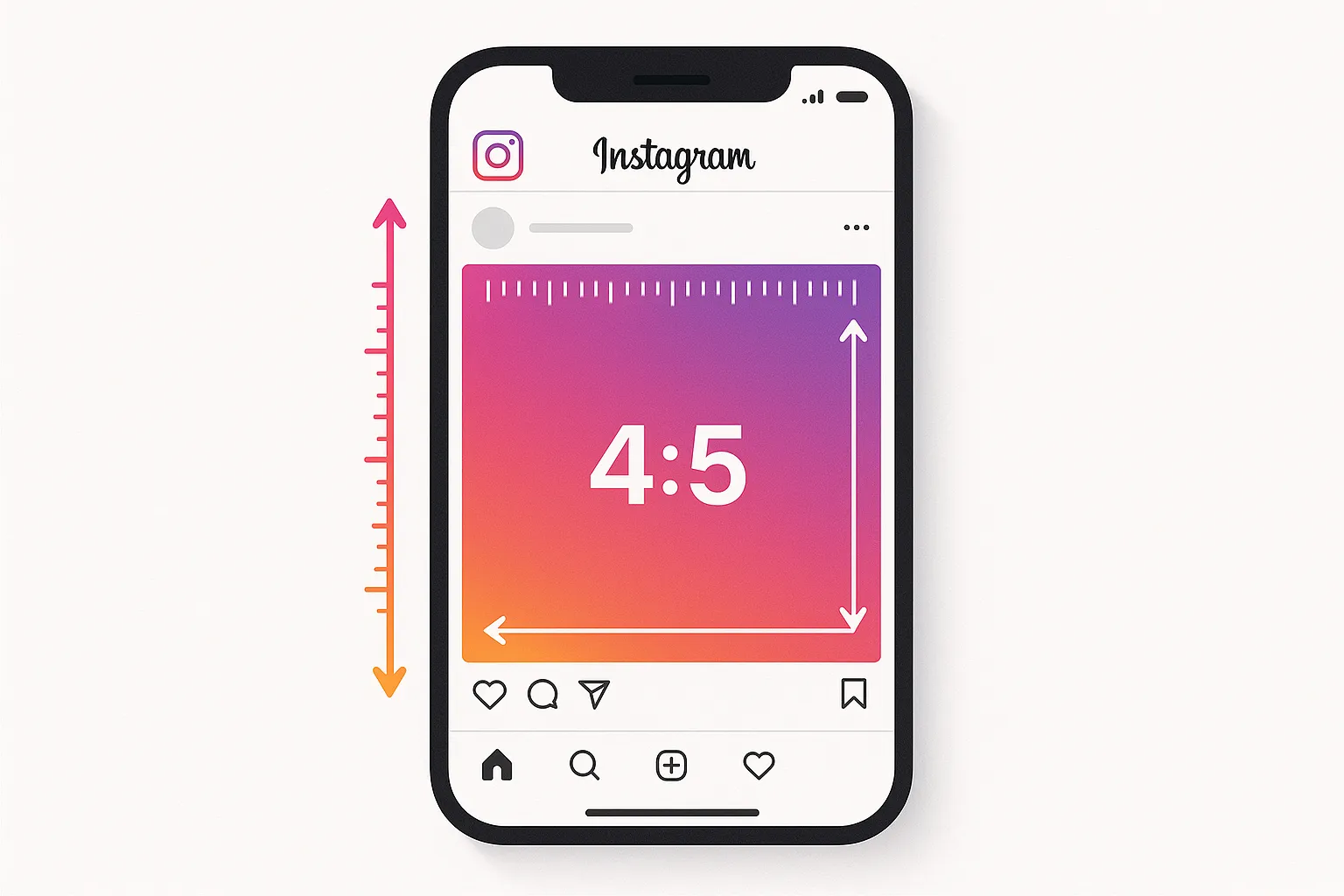
- Prepare all slides in advance. Design your carousel in Canva, Figma, or your design tool of choice. Export each slide as a separate image file at 1080 x 1080 (square), 1080 x 1350 (portrait, recommended for maximum screen real estate), or 1080 x 566 (landscape). All slides must be the same aspect ratio
- Upload all slides in order to your scheduling tool. Verify the slide order before scheduling — most tools let you drag to reorder
- Write your caption. Carousel captions tend to be longer and more informative than standard post captions because the format lends itself to educational and value-packed content
- Schedule and confirm. The carousel will publish with all slides in the correct order
A note on carousel strategy: the first slide is your hook. It must stop the scroll. The last slide should include a call to action — "Save this for later," "Share with someone who needs this," or "Follow for more." The middle slides deliver the value. For detailed carousel design strategies, see our guide on getting more saves on Instagram.
How to Schedule Instagram Stories for Free
Stories scheduling is the most limited of all Instagram content types when it comes to free tools. As of 2026, only Meta Business Suite offers free Stories scheduling. Instagram's native scheduling does not support it, and most third-party free tiers either exclude it or limit it severely.
Step-by-Step: Schedule Stories via Meta Business Suite
- Open Meta Business Suite (desktop or app)
- Click "Create story" and select your Instagram account
- Upload your Story content — images at 1080 x 1920 (9:16) or videos up to 60 seconds
- Add text, stickers, or links using the Business Suite editor
- Click the schedule option, set your date and time, and confirm
Important Caveats for Scheduled Stories
- Interactive stickers are limited. When scheduling through Meta Business Suite, you lose access to some of Instagram's native interactive Story stickers like polls, quizzes, questions, countdown timers, and music. If engagement stickers are central to your Stories strategy, you may need to post those Stories manually
- Stories expire after 24 hours regardless. A scheduled Story that publishes at 3 PM will disappear at 3 PM the next day. Plan your schedule accordingly — a Story scheduled at 11 PM reaches fewer people because most of your audience is asleep during its active window
- No multi-Story sequences. Each Story must be scheduled individually. If you typically post a series of 5-7 Stories that tell a narrative arc, you need to schedule each one separately with appropriate time gaps (or schedule them all at the same time so they publish as a sequence)
What Are the Best Times to Schedule Instagram Posts?
There is no universal "best time to post on Instagram." The optimal posting time depends on your specific audience — where they live, when they wake up, when they commute, when they have lunch, when they unwind at night. Generic advice like "post at 11 AM on Wednesdays" is based on aggregated data across millions of accounts, which makes it a reasonable starting point but a poor long-term strategy.
How to Find Your Audience's Peak Times
- Open Instagram Insights. Go to your profile, tap the insights icon (bar chart), then navigate to "Total Followers" and scroll down to "Most Active Times"
- Review the hourly breakdown for each day of the week. Instagram shows you exactly when your followers are online, broken down by hour and by day
- Identify the peak windows. Most accounts will see two to three peak periods: morning (7-9 AM), midday (11 AM - 1 PM), and evening (7-9 PM) in their audience's primary timezone
- Schedule your posts 15 to 30 minutes before the peak starts. This gives the post time to get initial engagement before the majority of your audience comes online, which signals to the algorithm that the content is worth showing to more people
General Benchmarks by Day (Use as Starting Points Only)
| Day | Good Times to Test | Why |
|---|---|---|
| Monday | 6 AM, 11 AM, 7 PM | Morning commute, lunch break, evening wind-down |
| Tuesday | 7 AM, 12 PM, 8 PM | Peak midweek engagement day for many accounts |
| Wednesday | 7 AM, 11 AM, 7 PM | Consistent midweek activity |
| Thursday | 8 AM, 12 PM, 9 PM | End-of-week browsing increases |
| Friday | 7 AM, 1 PM | Morning engagement strong, drops off in evening |
| Saturday | 9 AM, 11 AM | Later wake-up, morning browsing window |
| Sunday | 8 AM, 4 PM, 7 PM | Relaxed browsing throughout the day |
For a much deeper dive into posting times across every platform, including Instagram-specific data, see our comprehensive guide on the best times to post on social media.
How to Schedule Posts Across Multiple Platforms Simultaneously
If you are only on Instagram, native tools work fine. But most creators and businesses in 2026 maintain a presence on three or more platforms — typically some combination of Instagram, TikTok, YouTube, X/Twitter, Threads, and Pinterest. Scheduling to each platform individually is a massive time sink.
Multi-platform scheduling tools let you create content once and publish to every platform from a single dashboard. Here is how the workflow looks in practice:
- Connect all your accounts in one tool. With cross-post, for example, you connect Instagram, TikTok, and YouTube (or whichever three accounts you choose on the free tier)
- Create your post once. Upload your video, write your caption
- Select all destination platforms. Check Instagram, TikTok, and YouTube. The same content goes to all three
- Customize per platform if needed. Instagram allows 2,200 characters in captions; TikTok limits to 4,000; YouTube Shorts captions can be up to 100 characters. You might use different hashtags on each platform. Most multi-platform tools let you tweak the caption for each destination
- Schedule once. One date, one time, one click. The tool publishes to all selected platforms at the scheduled time
This workflow is particularly powerful for short-form video creators. A single vertical video can be published as an Instagram Reel, TikTok, YouTube Short, and even a Threads or X video post. Editing the video once and uploading it once to a cross-posting tool versus uploading it separately to four different apps saves 15 to 20 minutes per post. Over 30 posts a month, that is 7.5 to 10 hours of saved time.
For a more detailed walkthrough of multi-platform publishing, see our guides on posting to all social media at once and repurposing content across platforms.
Free Tool Comparison: Which Should You Choose?
Here is an honest comparison of the free scheduling options to help you pick the right one for your situation.
| Feature | Instagram Native | Meta Business Suite | cross-post (Free) | Buffer (Free) | Later (Free) |
|---|---|---|---|---|---|
| Price | Free | Free | Free | Free | Free |
| Platforms | Instagram only | Instagram + Facebook | 7 platforms | 9 platforms | 5 platforms |
| Accounts | 1 | 1 IG + 1 FB | 3 | 3 | 1 per platform |
| Post limit | Unlimited | Unlimited | Unlimited | 10 queued per channel | 5/month per profile |
| Reels | ✓ | ✓ | ✓ | ✓ | Paid only |
| Carousels | ✓ | ✓ | ✓ | ✓ | ✓ |
| Stories | No | ✓ | No | No | No |
| Queue slots | No | No | ✓ | ✓ | No |
| Calendar view | No | ✓ | ✓ | No (free) | ✓ |
| Bulk upload | No | No | ✓ | No | No |
| Analytics | Via Insights | ✓ | ✓ | Paid only | Limited |
| Desktop support | No | ✓ | ✓ | ✓ | ✓ |
| Best for | Quick one-off scheduling | Instagram + Facebook only | Multi-platform creators | Beginners, simple needs | Evaluation only (5/mo limit) |
Our Recommendation by Situation
- Instagram only, casual posting: Use Instagram's native scheduling. It is built into the app you already use, requires zero setup, and handles feed posts, carousels, and Reels
- Instagram + Facebook, business use: Use Meta Business Suite. It is the most powerful free option for Meta platforms, with analytics, inbox management, and Stories scheduling
- Instagram + 1-2 other platforms: Use cross-post. The free Starter Pack gives you 3 accounts with unlimited posts, queue-based scheduling, and bulk upload. Perfect for creators who post to Instagram plus TikTok, YouTube, or X
- Instagram + other platforms, low volume: Use Buffer. The 3-channel, 10-post-queue free plan is enough for creators who post two to three times a week
- Evaluating tools: Try Later and Hootsuite to see if their paid features justify the cost. But do not rely on them as free long-term solutions
Common Mistakes When Scheduling Instagram Posts
Scheduling saves time, but it also introduces new failure modes that manual posting does not have. Here are the most common mistakes and how to avoid them.
1. Scheduling and Forgetting
The biggest mistake is treating scheduling as a completely hands-off process. When you schedule a post, you still need to be present during the first 30 to 60 minutes after it publishes to respond to comments and DMs. This initial engagement window is critical because the algorithm uses early engagement signals to decide whether to distribute the post to a wider audience.
If you schedule a post for 9 AM and then check your phone at 3 PM, you have missed the entire engagement window. Your post may have received comments and DMs that went unanswered for hours, signaling to the algorithm (and your audience) that you are not responsive.
Fix: Set a reminder on your phone for when your scheduled post goes live. Spend 15 to 20 minutes engaging with comments, replying to DMs, and interacting with related content in your niche.
2. Not Reviewing Scheduled Content Before It Publishes
Circumstances change. A lighthearted post scheduled during a national tragedy looks tone-deaf. A product promotion scheduled on a day your website is down wastes the opportunity. A post referencing a trend that has already passed makes you look out of touch.
Fix: Do a weekly review of your upcoming scheduled content. Scan for anything that might be inappropriate given current events or business changes. Most scheduling tools show your upcoming posts in a calendar or list view — take two minutes to scroll through it.
3. Scheduling at Generic "Best Times" Instead of Your Best Times
We addressed this earlier, but it is worth repeating because it is extremely common. Using generic best-time charts from blog posts (including, honestly, the table earlier in this article) instead of your own Instagram Insights data is one of the most widespread scheduling mistakes.
Fix: Open Instagram Insights, check when your specific followers are most active, and schedule accordingly. Your audience is unique. A fitness creator's audience might be most active at 6 AM; a nightlife business's audience might peak at 10 PM. The data is free and specific to you — use it.
4. Over-Scheduling Without Variety
Batch creation makes it tempting to create 20 variations of the same type of post and schedule them all. But a feed full of identical-looking content bores your audience and signals to the algorithm that you are not creating diverse, engaging content.
Fix: Use content pillars to ensure variety. Alternate between educational posts, behind-the-scenes content, entertaining content, and promotional content. Your scheduled content should look like a curated feed, not a production line.
5. Ignoring Platform-Specific Best Practices
When scheduling the same content to multiple platforms, it is tempting to use the exact same caption everywhere. But each platform has its own culture, character limits, and expectations. Hashtags that boost reach on Instagram might look spammy on LinkedIn. A caption that works on X (280 characters) needs expansion for Instagram (up to 2,200 characters).
Fix: If you cross-post, take an extra minute to customize the caption for each platform. Even small adjustments — removing hashtags for X, adding relevant ones for Instagram, adjusting the tone for LinkedIn — make a significant difference. For more on this balance, see our guide on cross-posting vs. native content.
6. Not Having a Backup Plan
Scheduling tools occasionally experience outages, API changes, or bugs that prevent scheduled posts from publishing. If you rely 100% on a scheduling tool with no monitoring, you might not notice that three days of posts silently failed to publish.
Fix: Check your Instagram profile after each scheduled post should have published. If you use a scheduling tool that shows post statuses (like cross-post, which syncs status from the platform), review the status dashboard regularly to catch any failures.
How Do You Build an Effective Instagram Scheduling Workflow?
Having the right tool is only half the equation. You need a workflow that makes scheduling a sustainable habit rather than an occasional burst of productivity followed by weeks of silence.
The Weekly Scheduling Workflow
Here is a practical weekly workflow that works for solo creators and small teams:
Day 1 (Batch Session — 2 to 3 hours):
- Review last week's performance (15 minutes). Check which posts performed well and which underperformed. Note any patterns — did Reels outperform carousels? Did a certain topic resonate more than others?
- Plan this week's content (20 minutes). Based on your content pillars, decide on topics for each scheduled post. Write down a one-line brief for each post
- Create all content (60-90 minutes). Film videos, shoot photos, design carousels. Do all production in one session to minimize setup time and maximize creative flow
- Write all captions (20-30 minutes). Write captions for every post. Include hashtags, calls to action, and any platform-specific variations
- Schedule everything (15-20 minutes). Upload all content to your scheduling tool, set times (or drop into the queue), and review the calendar view to check for balanced coverage
Daily (15-20 minutes):
- Check that the day's scheduled post published successfully
- Respond to comments and DMs within the first hour of the post going live
- Engage with 5-10 accounts in your niche (like, comment, share)
- Post one spontaneous Story if anything share-worthy happens
This workflow totals roughly 4 to 5 hours per week and produces 5 to 7 scheduled posts plus daily engagement. It is sustainable over months, which is what long-term growth requires.
How Many Posts Should You Schedule Per Week on Instagram?
The answer depends on your goals, capacity, and content type. Here are general guidelines:
| Goal | Recommended Frequency | Content Mix |
|---|---|---|
| Maintain presence | 3 posts per week | 2 feed/carousel posts + 1 Reel |
| Steady growth | 5 posts per week | 2 Reels + 2 carousels + 1 image post |
| Aggressive growth | 7-10 posts per week | 4-5 Reels + 2-3 carousels + 1-2 image posts |
In 2026, Reels should make up at least 40 to 50 percent of your Instagram content if growth is a priority. Reels reach non-followers at a much higher rate than feed posts or carousels, making them the primary driver of new follower acquisition.
That said, consistency at a sustainable pace always beats aggressive posting that leads to burnout. Three quality posts per week, every week for six months, will outperform daily posting for two weeks followed by a month of silence. For a deeper look at this principle, see our piece on why consistency matters more than perfection.
Can You Schedule Instagram Posts from a Computer?
Yes, but not using Instagram directly. Instagram's native scheduling only works in the mobile app. To schedule from a desktop or laptop, you need either Meta Business Suite (free, works in any browser at business.facebook.com) or a third-party tool like cross-post, Buffer, or Later — all of which have web-based dashboards that work on desktop.
Desktop scheduling is significantly faster for creators who batch-create content because:
- Typing captions on a full keyboard is faster than a phone keyboard
- Drag-and-drop file uploads from your computer's file system is faster than selecting from camera roll
- You can have your design tool, caption notes, and scheduling tool open side by side
- Editing and formatting long captions is easier on a larger screen
- Bulk uploading multiple files at once is seamless on desktop
If batch creation is a significant part of your workflow — and it should be — desktop scheduling is worth setting up even if you primarily use Instagram on your phone.
What Happens If a Scheduled Post Fails to Publish?
Scheduled posts can fail for several reasons: expired authentication tokens, Instagram API changes, content policy violations, file format issues, or temporary platform outages. Here is how to handle failures with each tool:
- Instagram Native: Failed posts appear in your "Scheduled content" section with an error indicator. You can retry or edit and reschedule
- Meta Business Suite: Failed posts show in the content calendar with a red warning. You get a notification with the error reason
- Third-party tools: Most show a "Failed" status with an error message. Common fixes include reconnecting your account (re-authenticating the OAuth connection) or re-uploading the media in a different format
The most common cause of failures is an expired authentication token. Instagram's API tokens need periodic refreshing, and most third-party tools handle this automatically. If posts start failing, the first troubleshooting step is always to disconnect and reconnect your Instagram account in the scheduling tool.
Should You Put Hashtags in the Caption or First Comment?
This is one of Instagram's most debated topics, and in 2026, the honest answer is: it does not matter much. Instagram has confirmed that hashtags work the same whether they are in the caption or the first comment. The algorithm processes them identically for content discovery.
That said, there are practical considerations for scheduling:
- Caption placement is simpler. Write everything in one place and schedule it. No need for a second action after the post publishes
- First comment placement keeps your caption visually clean. If you write long, thoughtful captions, a block of hashtags at the bottom can look cluttered. Putting them in a first comment separates the narrative from the discovery tags
- Scheduling limitation: Most free scheduling tools do not support automatic first-comment scheduling. Meta Business Suite does support it (there is a "first comment" field in the post creator). If your tool does not, you would need to manually add the first comment after the post publishes, which defeats part of the purpose of scheduling
If your scheduling tool supports first-comment scheduling, use it for a cleaner look. If it does not, put hashtags in the caption — the convenience of full automation outweighs a minor aesthetic preference.
How Far in Advance Should You Schedule Instagram Posts?
The sweet spot for most creators is one to two weeks in advance. This provides enough runway to maintain consistency even if you miss a batch creation session, while keeping your content timely and relevant.
Here are guidelines by content type:
- Evergreen educational content (tutorials, tips, how-tos): Schedule 2 to 4 weeks ahead. This content does not expire, so longer lead times are fine
- Trend-based content (reaction videos, trending audio, meme formats): Post immediately or schedule within 24 to 48 hours. Trends move fast — a scheduled trend post that goes live five days later often lands after the trend has peaked
- Seasonal/event content (holiday posts, product launches, promotions): Schedule 2 to 4 weeks ahead to ensure you do not miss the date
- Behind-the-scenes and personal content: Post in real time or within a day. This content derives its value from feeling authentic and immediate
Avoid scheduling more than a month ahead for regular content. Trends shift, your brand evolves, current events change context, and content that felt great a month ago might feel stale or inappropriate by the time it publishes.
How to Avoid the Instagram Scheduling "Robot" Problem
One valid concern about scheduling is that your feed starts to feel automated and impersonal. When every post is perfectly polished and precisely timed, it can lack the spontaneity that makes social media feel social. Here is how to keep your scheduled presence feeling human:
- Follow the 80/20 rule. Schedule 80% of your content (your core, value-driven posts) and keep 20% spontaneous. That 20% can be impromptu Stories, real-time reactions, casual photos, or in-the-moment thoughts
- Respond to comments in your own voice. This is the most important anti-robot signal. When someone comments on a scheduled post and you reply with a thoughtful, personality-filled response, it does not matter that the post itself was scheduled three days ago
- Use Stories for real-time content. Stories are inherently casual and ephemeral. Use them to show what you are doing right now, share quick thoughts, or interact with your audience through polls and questions. This balances the polished scheduled posts in your feed
- Vary your caption style. Do not use the same formula for every caption. Mix long-form storytelling with short punchy statements, questions, and calls to action. Varied caption styles keep your feed feeling dynamic
- Show your face regularly. Even if you are a brand account, showing real humans (your team, yourself, your customers) adds warmth that pure product or graphic content cannot match
Setting Up Your Free Scheduling System Today
You do not need to evaluate every tool on this list. Pick the one that matches your current situation and start scheduling today. You can always switch later — no tool locks you in, and you own your content regardless of which tool publishes it.
If you only post to Instagram:
- Open the Instagram app
- Create three posts right now — one Reel, one carousel, one image post
- Schedule each one for a different day this week using Instagram's native scheduling
- Set phone reminders for when each post goes live so you can engage with comments
If you post to Instagram and other platforms:
- Sign up for cross-post (free, takes two minutes)
- Connect your Instagram account plus one or two other platforms
- Set up queue time slots for your preferred posting days and times
- Create three posts, drop them into the queue, and let them publish automatically
After one week, you will have a rhythm. After a month, scheduling will feel natural. After three months, you will wonder how you ever managed social media without it. The goal is not to automate your personality — it is to automate the logistics of publishing so you can focus your energy on creating content worth following.
The best scheduling system is the one you actually use consistently. Start simple, start today, and refine your workflow as you go.
Frequently Asked Questions
Is there a completely free way to schedule Instagram posts?
Yes. Instagram's own app includes built-in scheduling for feed posts, carousels, and Reels at no cost. Meta Business Suite adds Stories scheduling and desktop access, also free. Third-party tools like cross-post and Buffer offer free tiers that include Instagram scheduling with multi-platform support. You do not need to pay anything to schedule Instagram posts in 2026.
Does scheduling Instagram posts reduce reach?
No. Instagram does not penalize scheduled content. The algorithm evaluates posts based on engagement, relevance, and recency — not whether the post was published manually or by a scheduling tool. Instagram's own scheduling tools (native and Meta Business Suite) would be self-defeating if they reduced reach.
Can you schedule Instagram Reels for free?
Yes. Instagram's native scheduling, Meta Business Suite, cross-post (free tier), and Buffer (free tier) all support Reels scheduling at no cost. Later's free plan does not include Reels scheduling — that requires a paid upgrade.
Can you schedule Instagram Stories for free?
Meta Business Suite is currently the only free tool that supports Instagram Stories scheduling. Instagram's native scheduling does not support Stories, and most third-party free tiers exclude Stories scheduling. The trade-off with Meta Business Suite is that you lose access to some interactive stickers (polls, quizzes, music) when scheduling Stories.
What is the best free tool for scheduling Instagram posts in 2026?
It depends on your needs. For Instagram-only users, Meta Business Suite is the most full-featured free option. For multi-platform creators who post to Instagram plus TikTok, YouTube, X, or other platforms, cross-post offers the best free tier with 3 accounts, unlimited posts, and queue-based scheduling. Buffer is a solid middle option for beginners who want simplicity.
How many Instagram posts can you schedule for free?
Instagram's native scheduling and Meta Business Suite have no post limits — you can schedule as many posts as you want. cross-post's free tier also allows unlimited posts across up to 3 connected accounts. Buffer's free plan limits you to 10 queued posts per channel at a time. Later's free plan is the most restrictive at 5 posts per month per social profile.
Can you schedule posts to multiple Instagram accounts for free?
Not with native tools — each Instagram account must be scheduled separately. With a multi-platform tool like cross-post, you can connect multiple Instagram accounts (up to your plan's account limit) and manage them from one dashboard. The free tier supports 3 total accounts, which could be 3 Instagram accounts or a mix of platforms.
What happens if you disconnect a scheduling tool from Instagram?
Any pending scheduled posts will not publish. Already-published posts remain on your Instagram profile — they are not deleted or affected. You can reconnect the tool at any time to resume scheduling. Your content is always on Instagram, regardless of which tool helped publish it.
Do I need an Instagram Business account to use scheduling tools?
For third-party tools and Meta Business Suite, yes — your Instagram account must be a Business or Creator account. Instagram's API only allows scheduling through professional accounts, not personal ones. Switching to a Business or Creator account is free and takes about 30 seconds in Instagram's settings. For Instagram's native in-app scheduling, creator and business accounts are supported.
Can you edit a post after it has been scheduled but before it publishes?
Yes, with every tool on this list. In Instagram's native scheduling, go to your profile menu and select "Scheduled content." In Meta Business Suite, find the post in your content planner. In third-party tools, open your scheduled posts list and edit or reschedule. You can change the caption, swap media, adjust the time, or delete the scheduled post entirely.
Ready to simplify your social media?
Post to Instagram, YouTube, TikTok, X, Threads, Pinterest, and Facebook from one dashboard.
Get Started Free →